
Marriage biodata maker
Marriage biodata.A fuller picture of you.
Bring your background, family, values and plans into one well-crafted introduction. Choose a design, make it personal and create a PDF you’re proud to share.
- 33 designsA style that suits you
- 23 languagesWrite in your own words
- PDF downloadReady to share or print
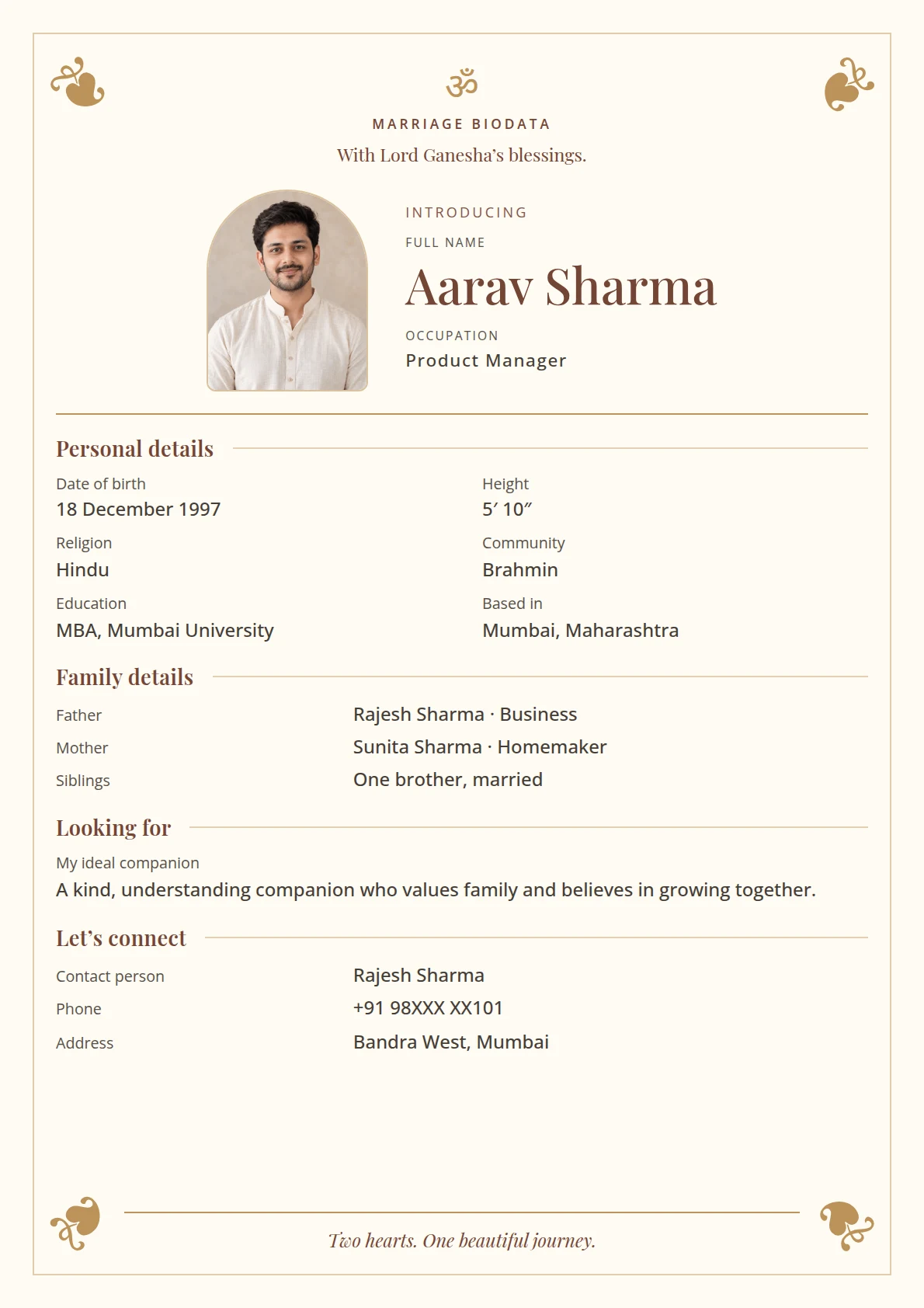
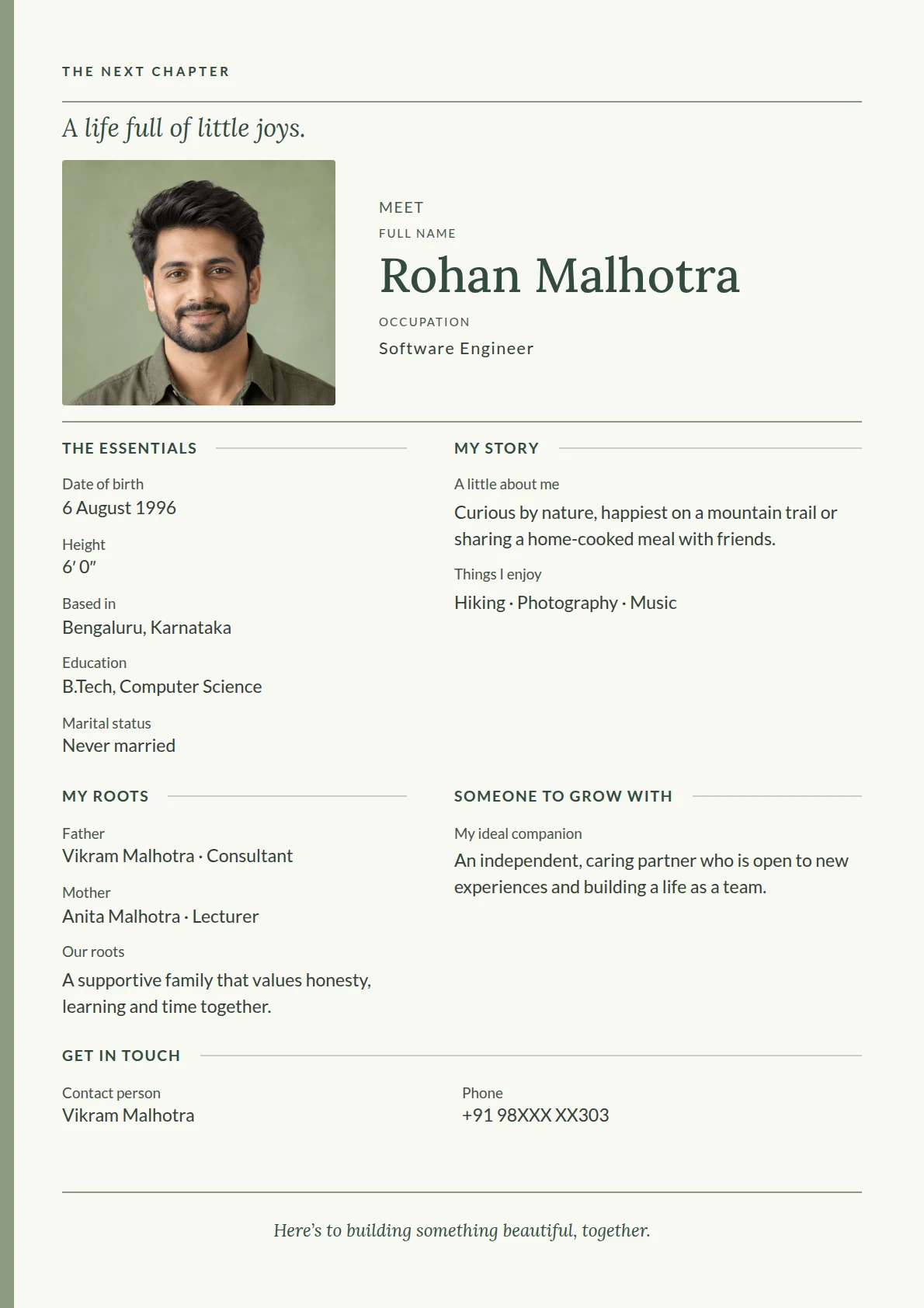
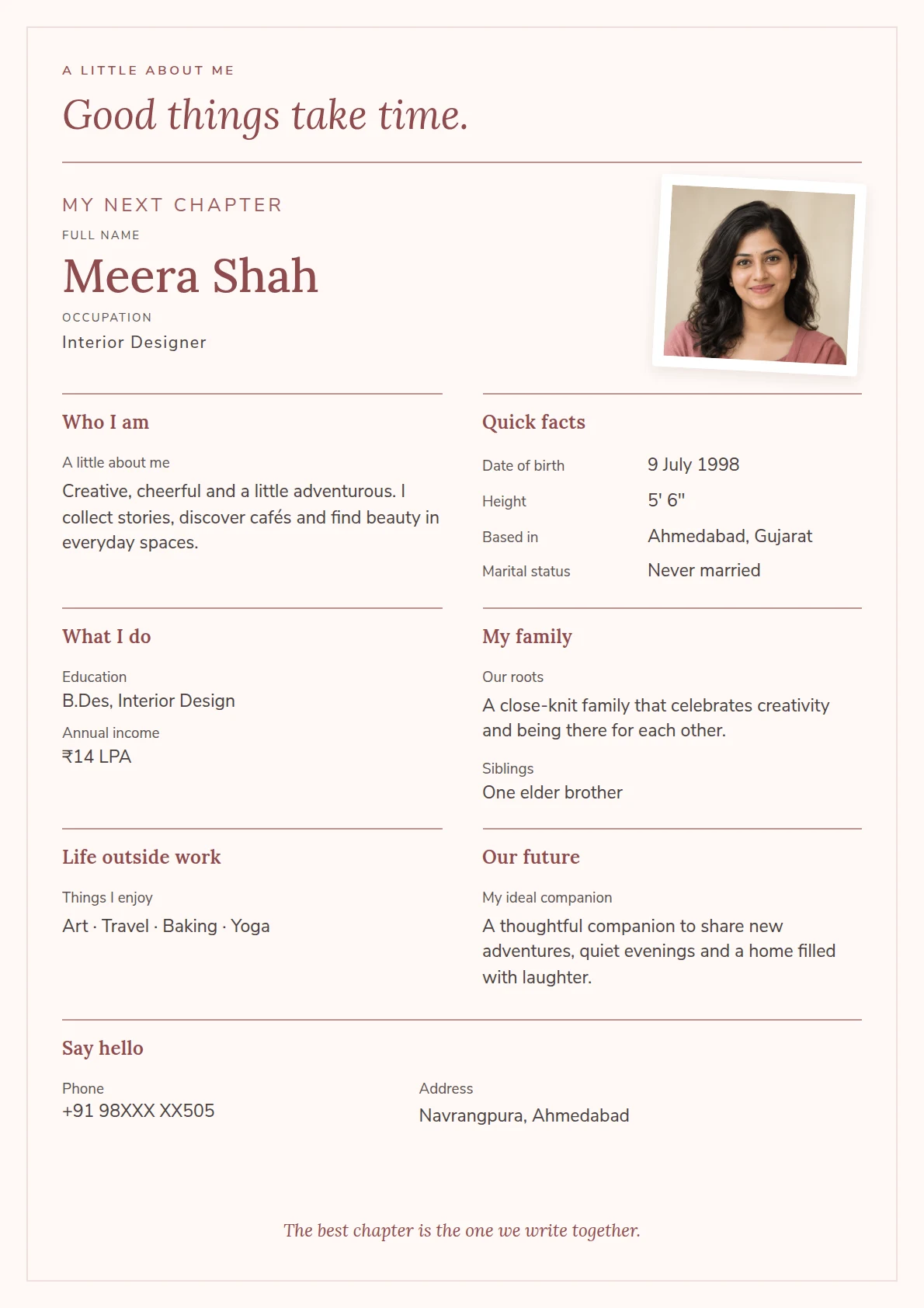
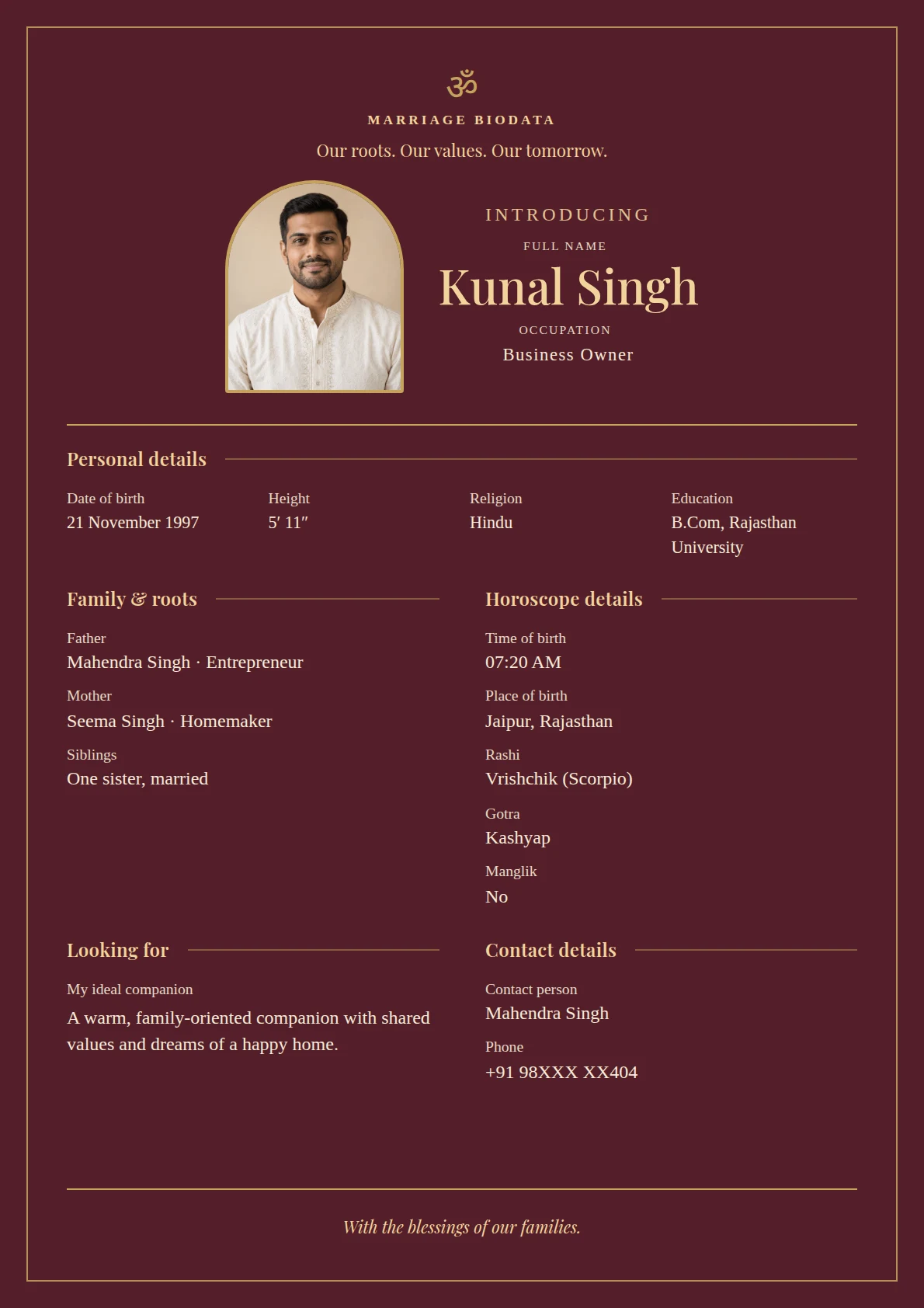
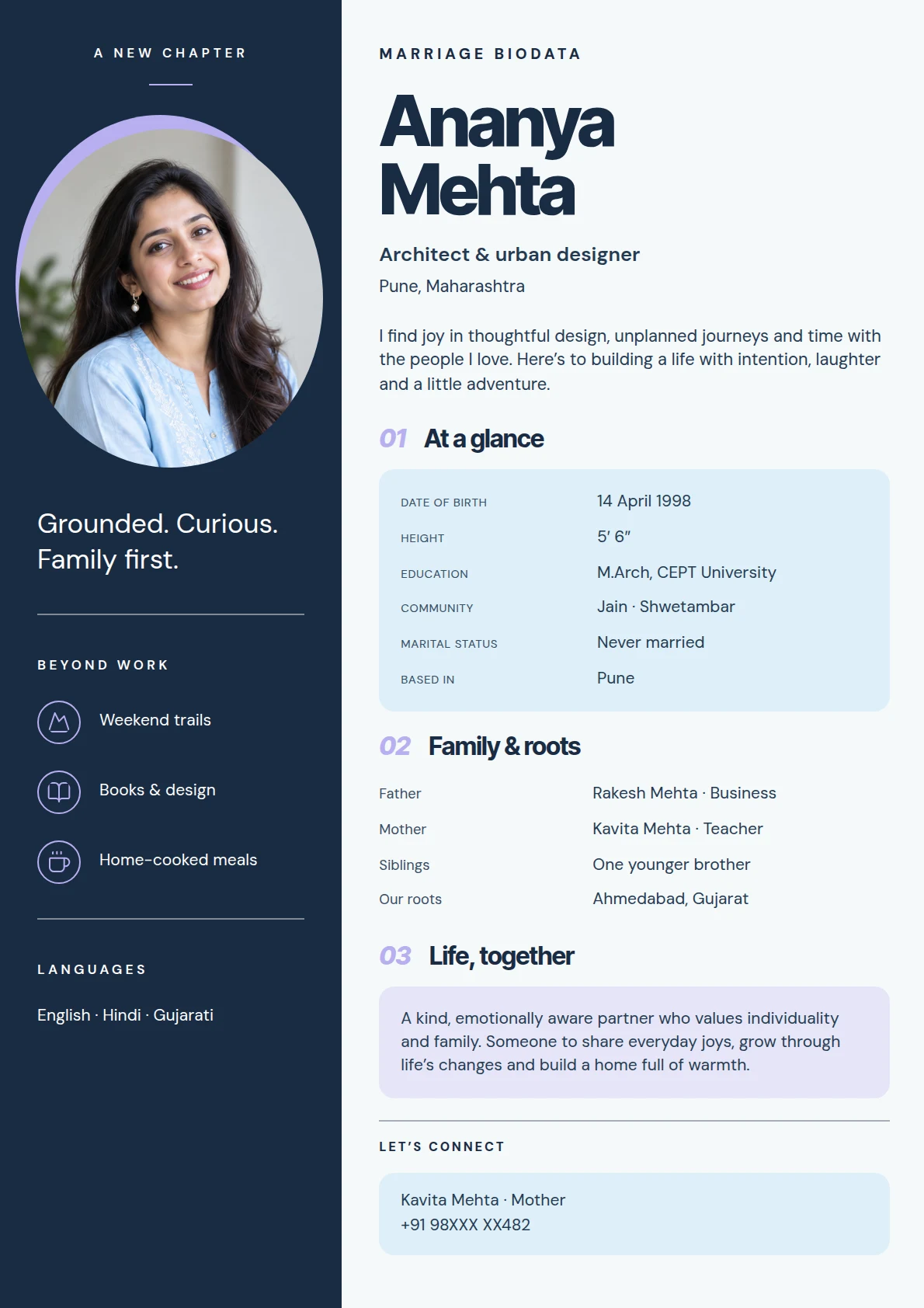
New design. Same details.
Choose your template
The biodata collection
Find the right setting for your introduction.
Traditional, minimal or contemporary—choose a starting point. You can change the design later and keep your details.
TIMELESS
Wedding Classic
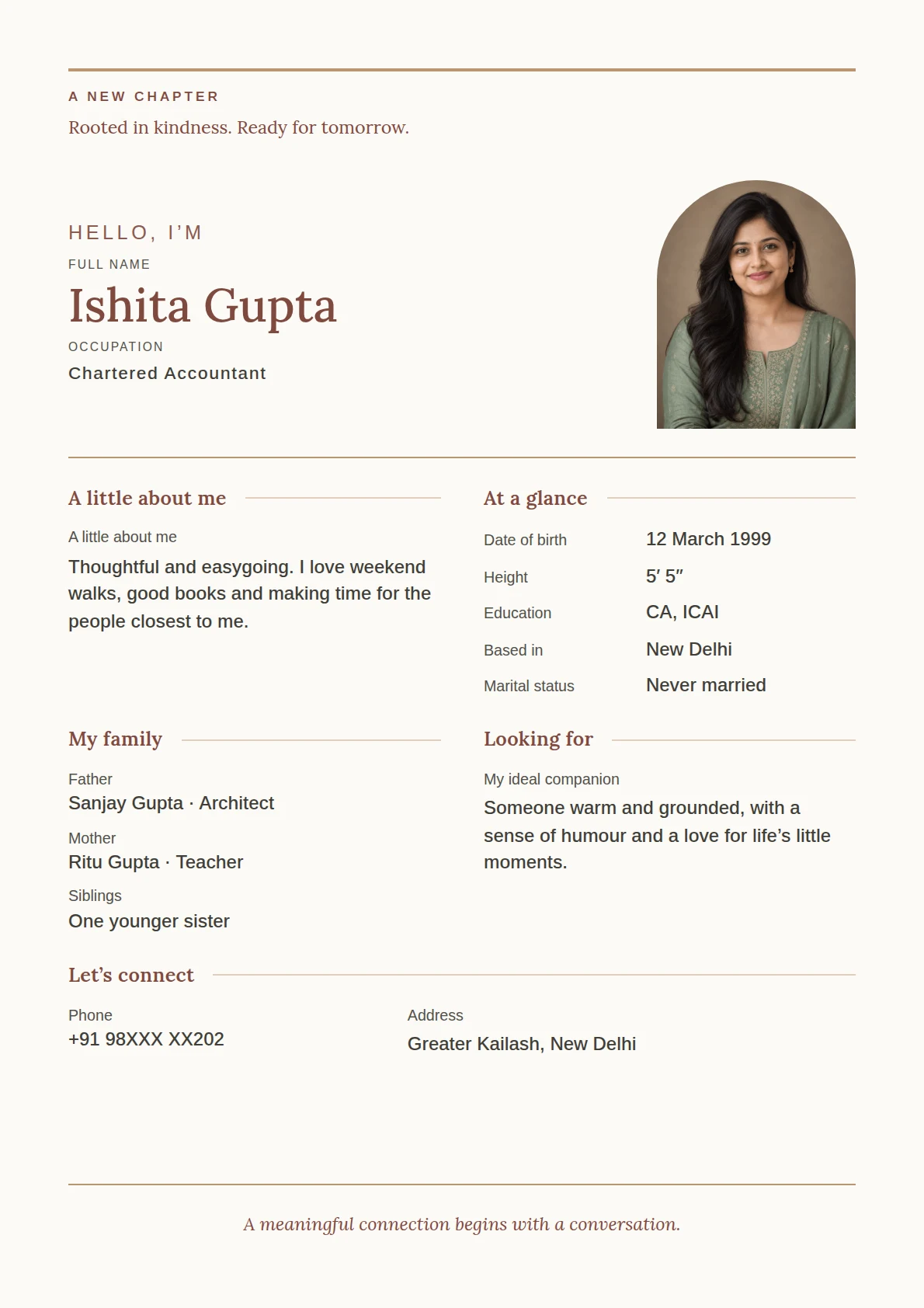
REFINED
Minimal Portrait
CONTEMPORARY
Editorial Story
TRADITIONAL
Royal Heritage
PERSONAL
Modern Chapters
MODERN
Midnight & Moonstone
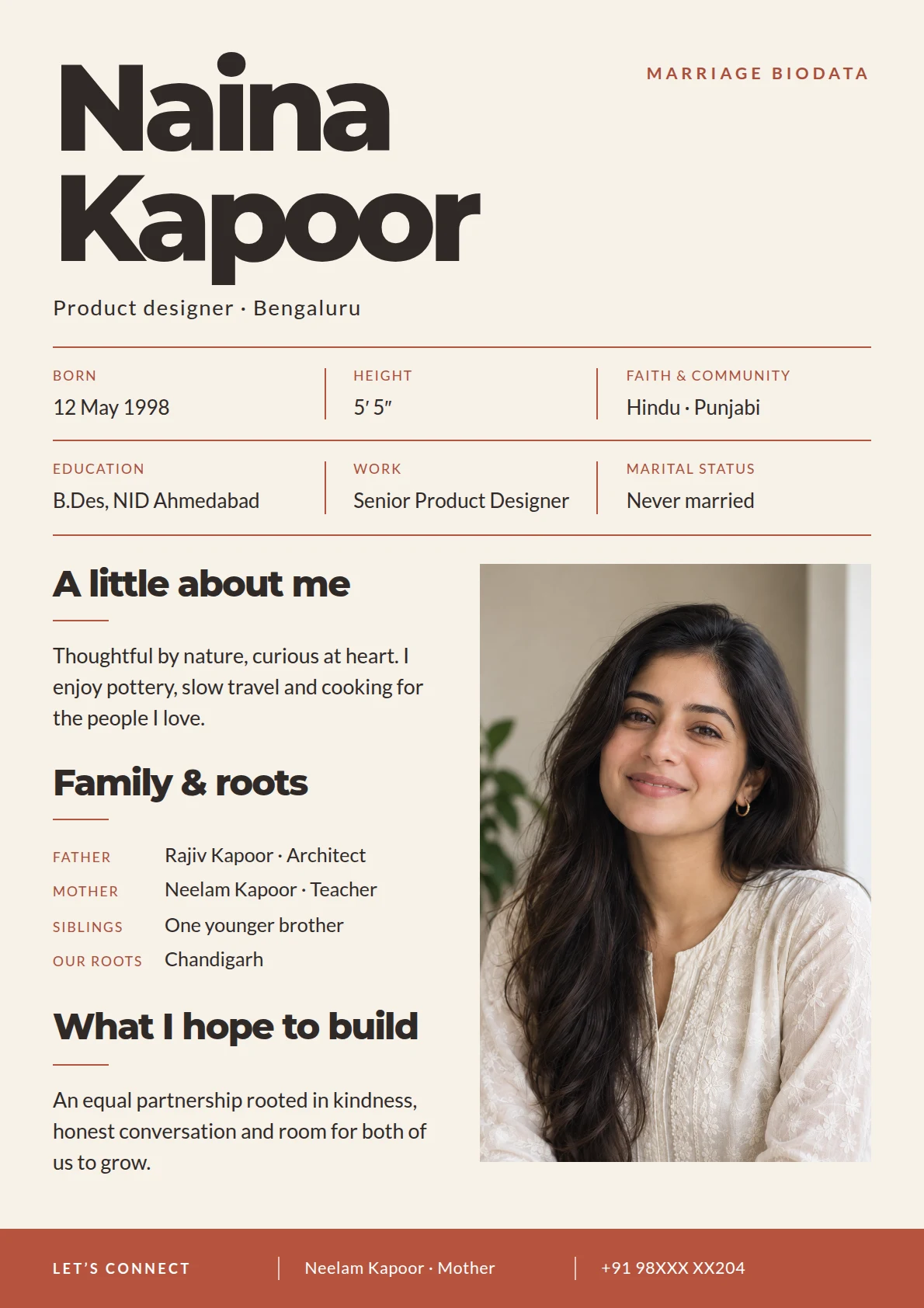
EARTHY
Terra & Linen
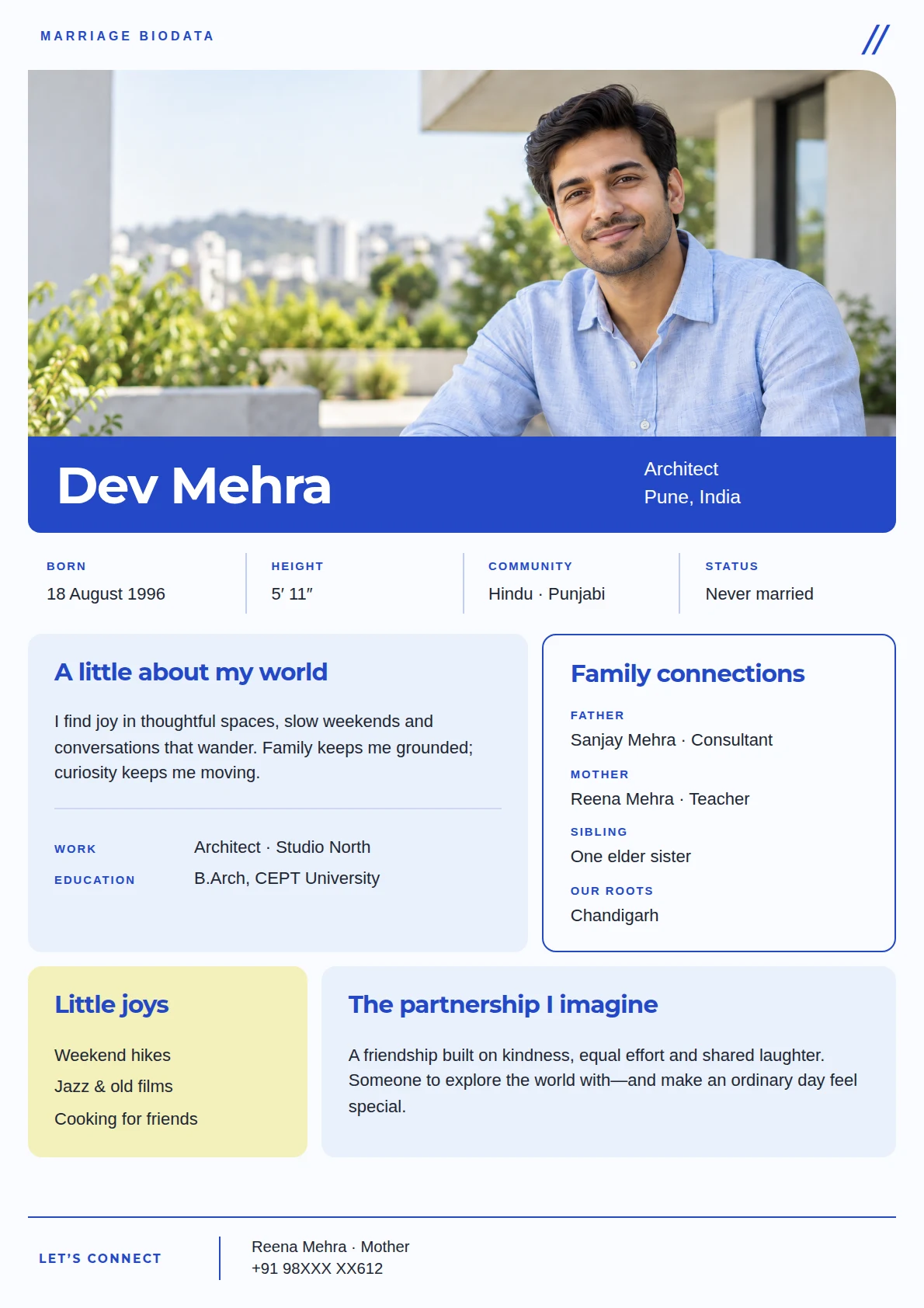
FRESH
Cobalt & Citrus
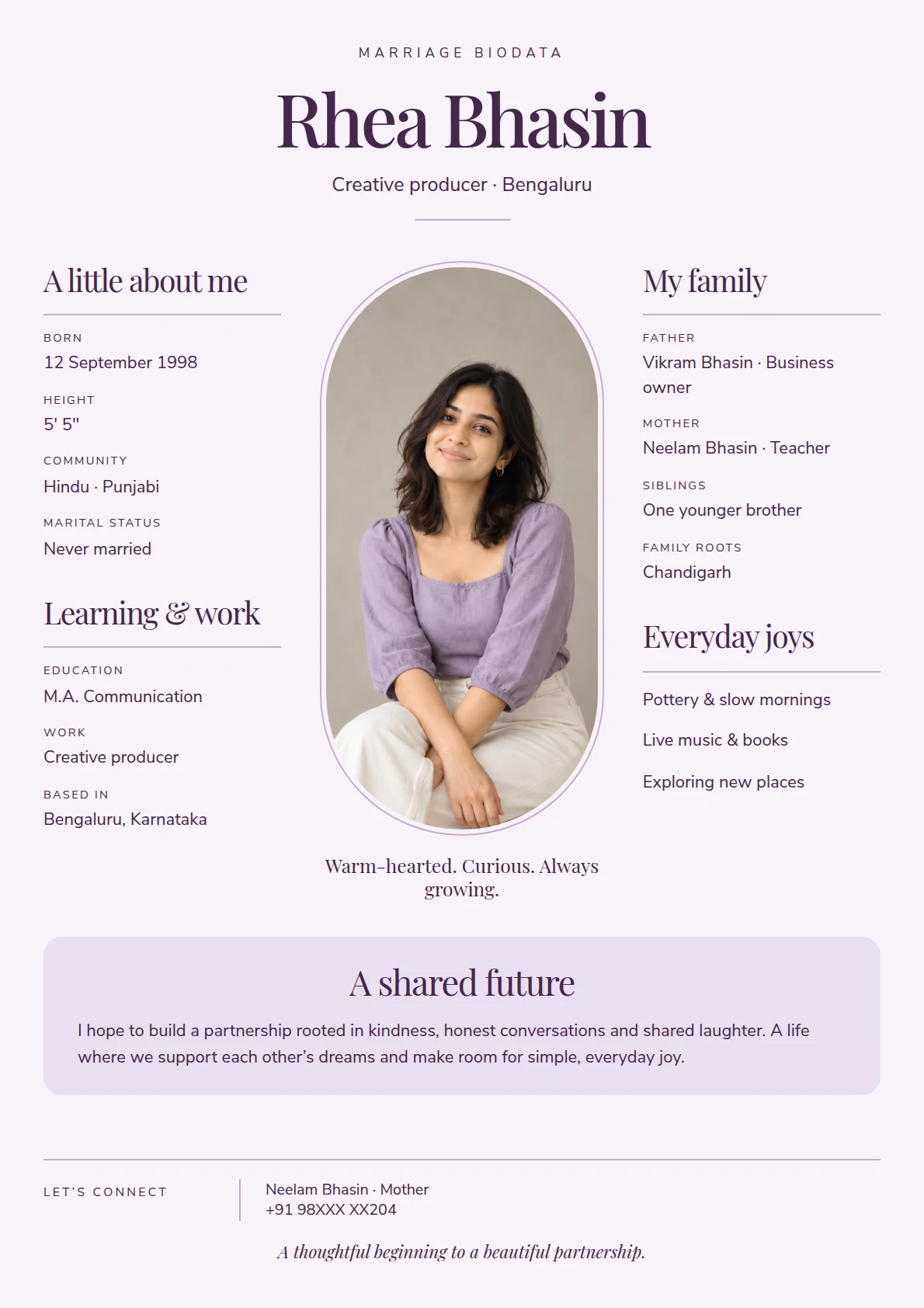
ELEGANT
Orchid & Ink
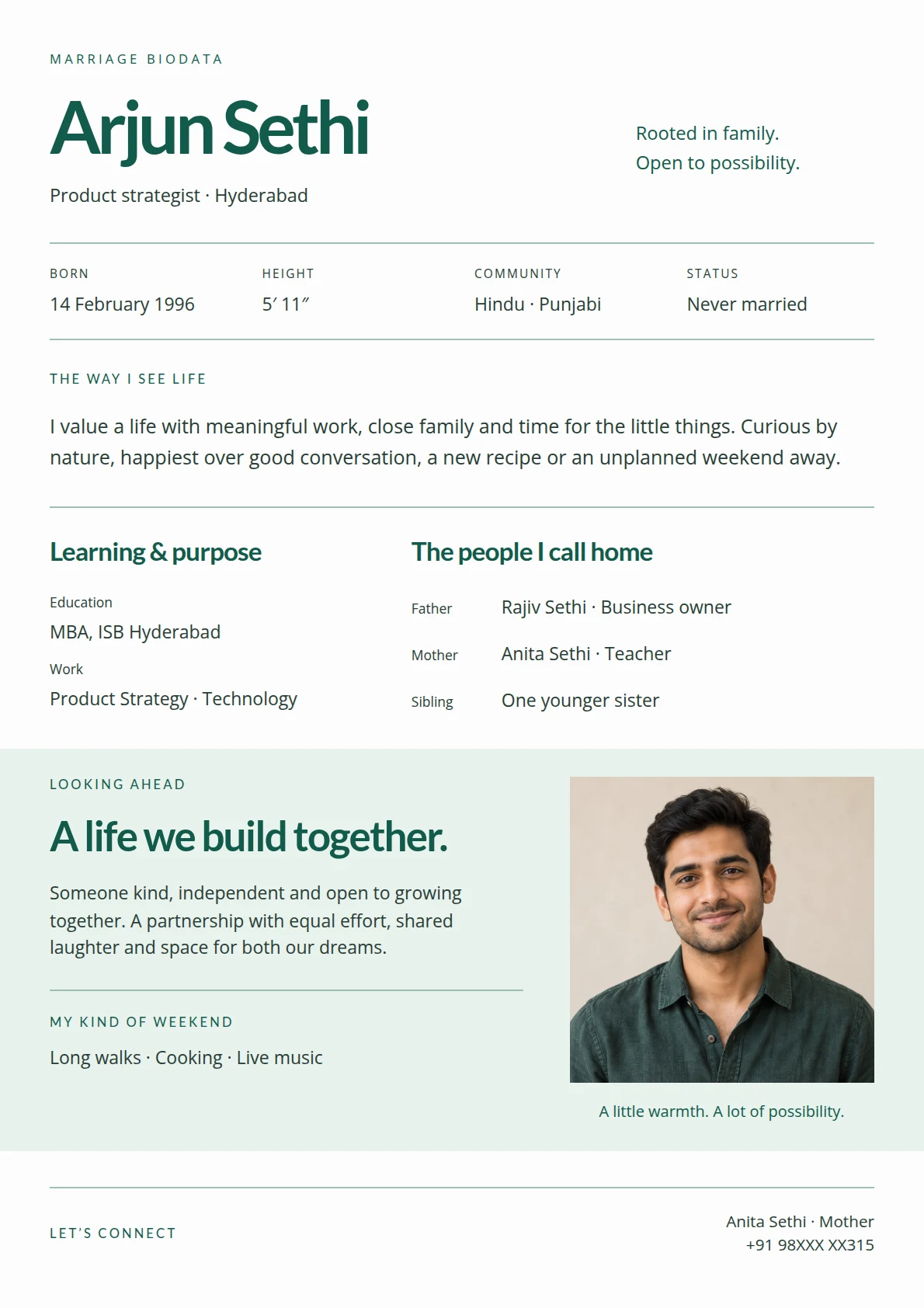
SERENE
Jade & Pearl
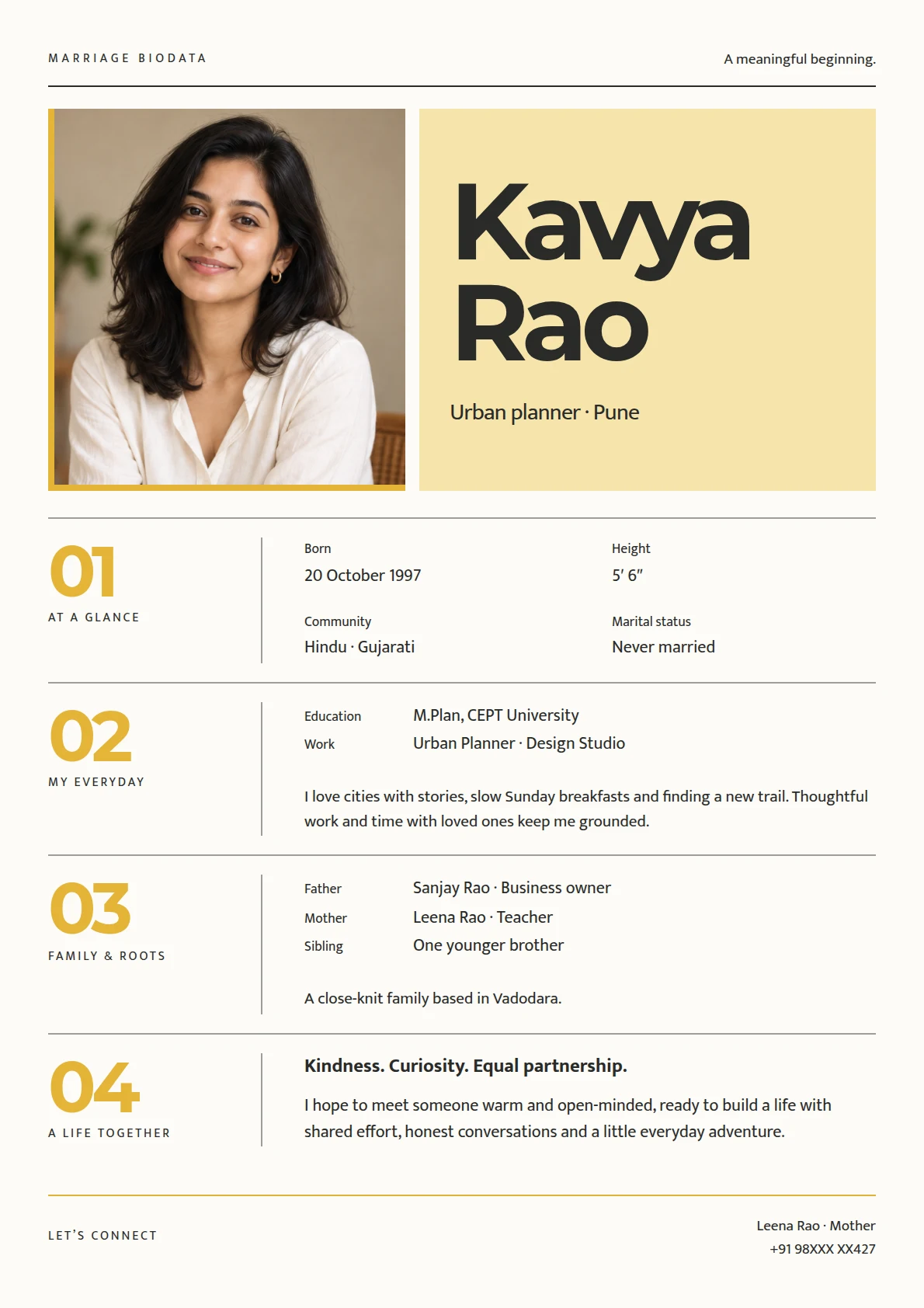
EXPRESSIVE
Saffron & Graphite
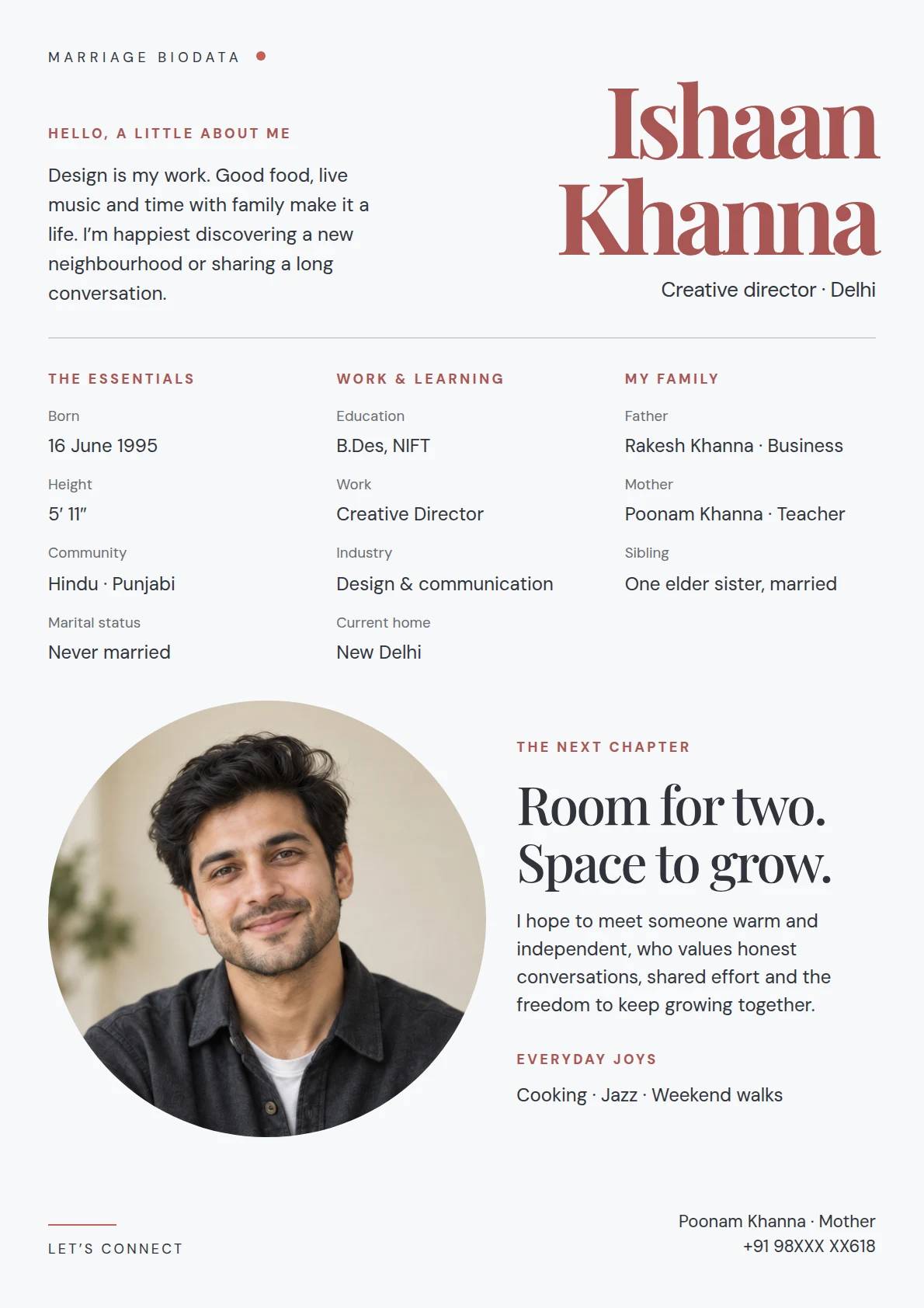
AIRY
Coral & Cloud
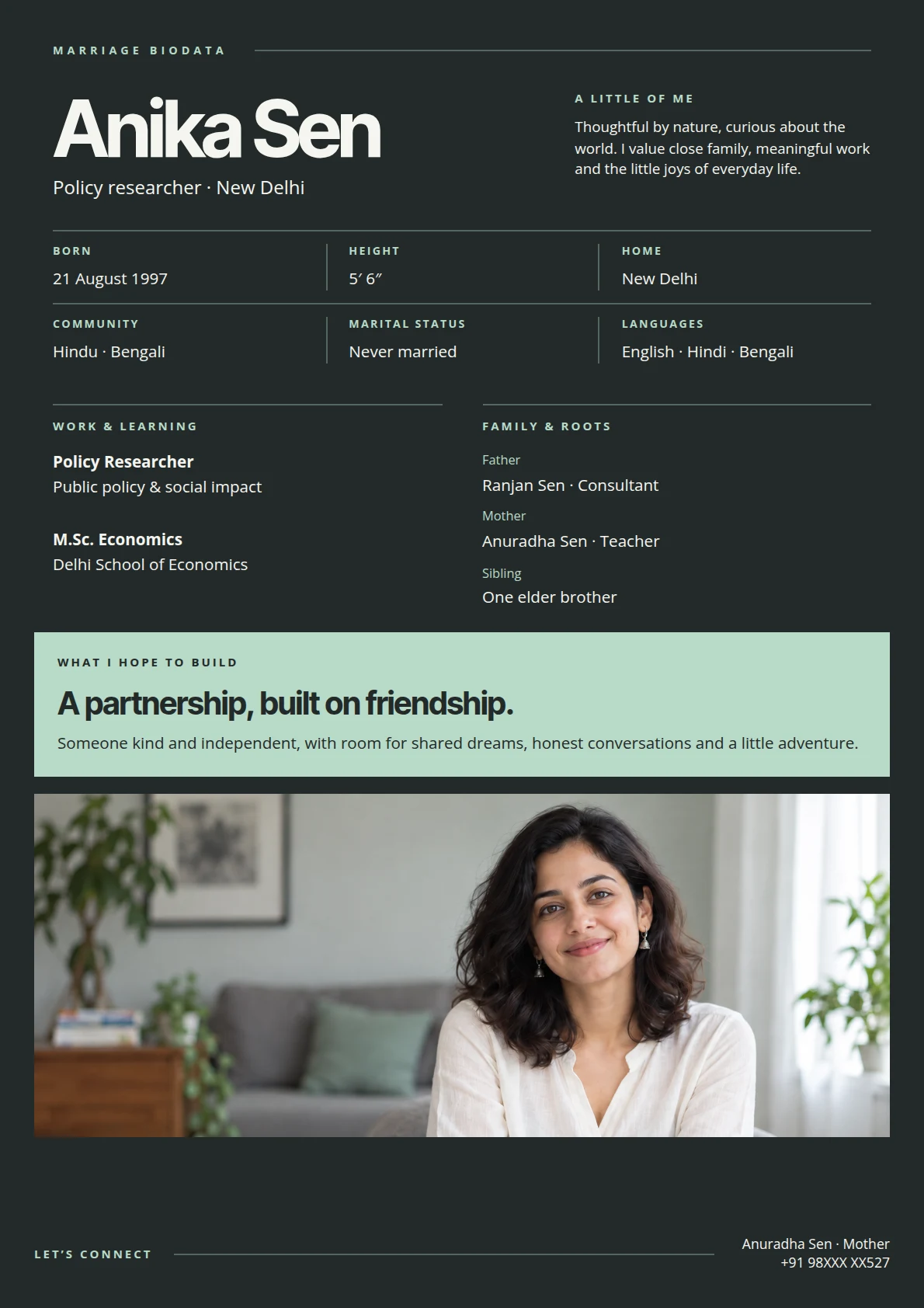
COMPOSED
Graphite & Mint
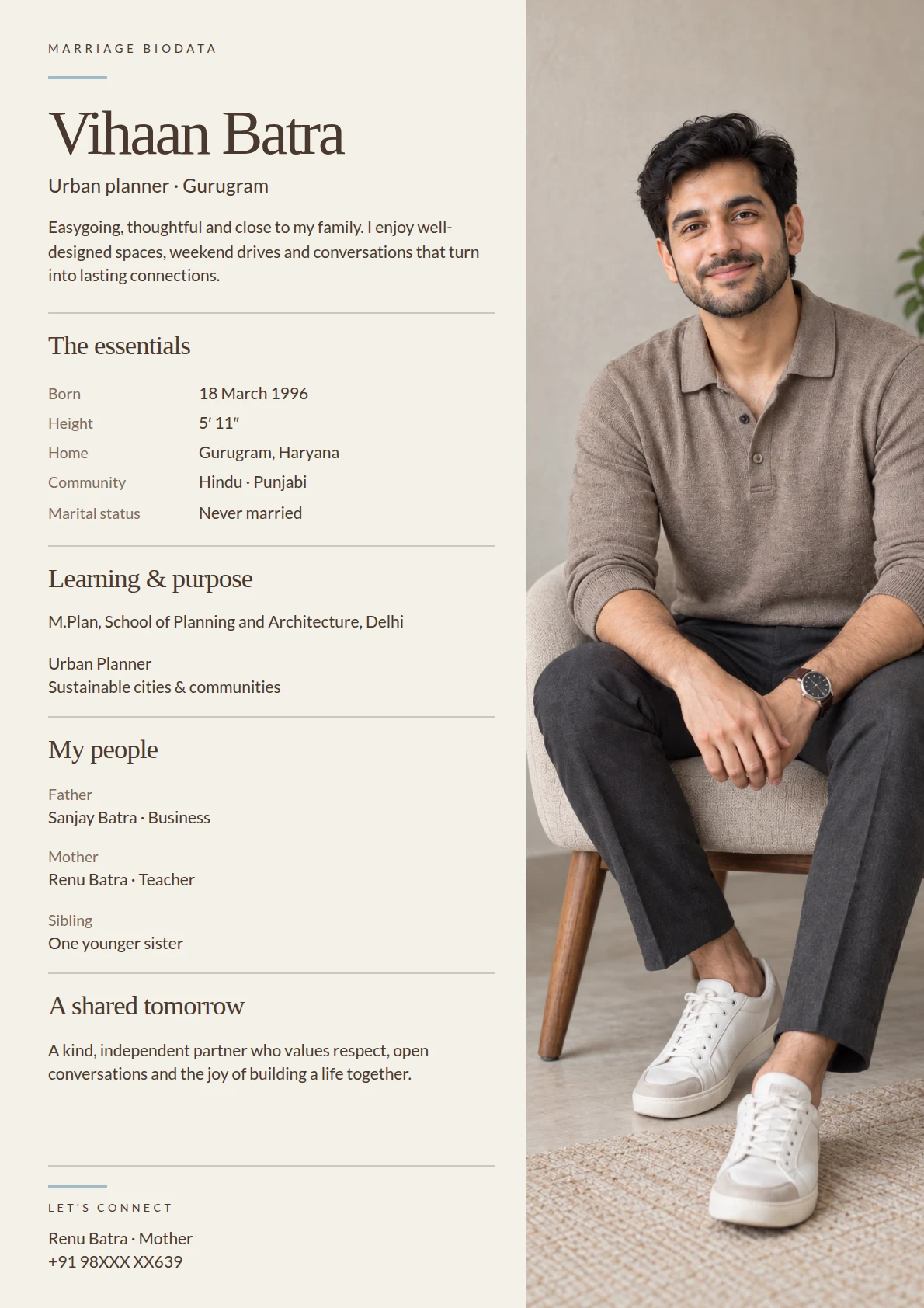
EDITORIAL
Espresso & Oat
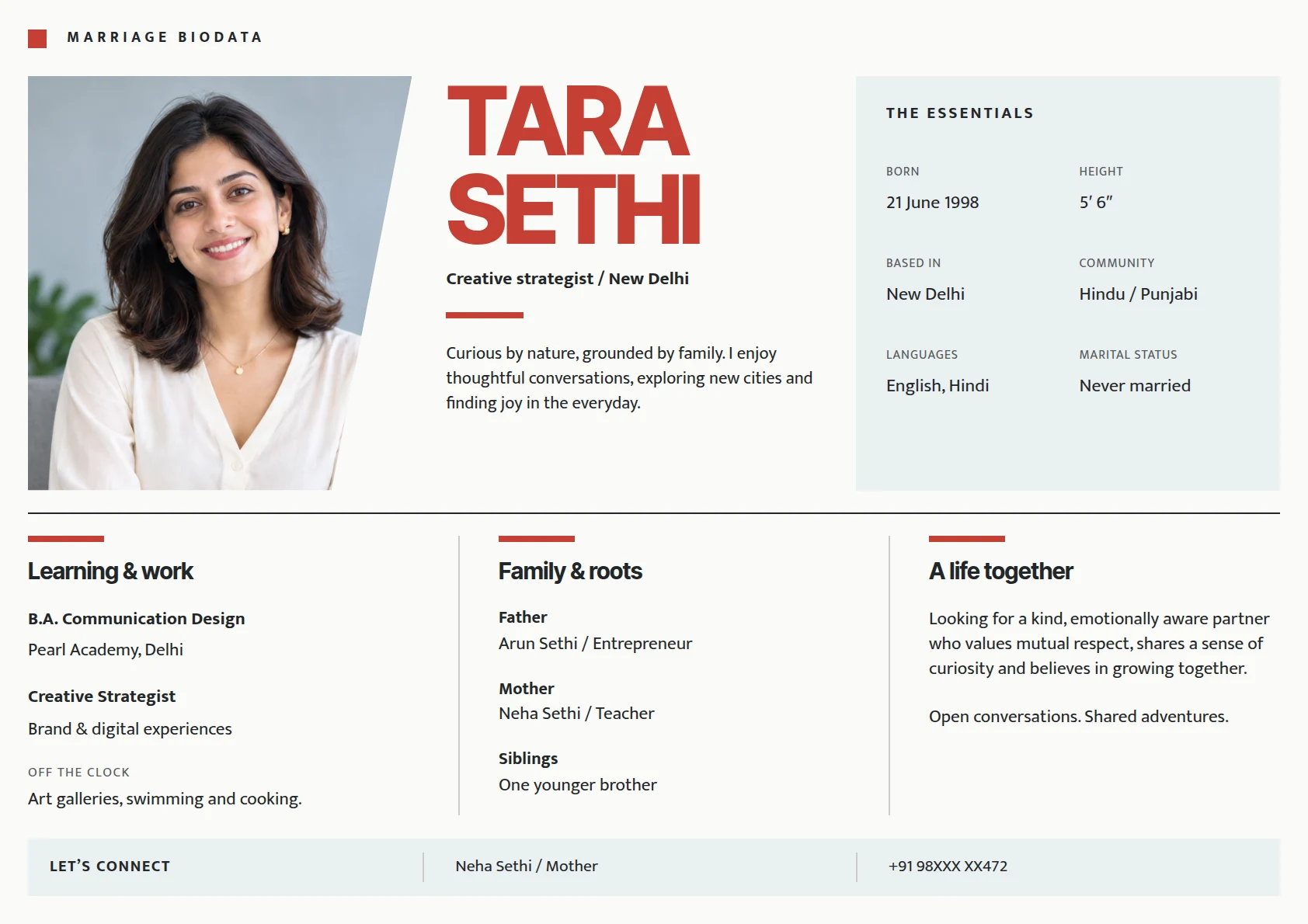
LANDSCAPE
Vermilion & Porcelain
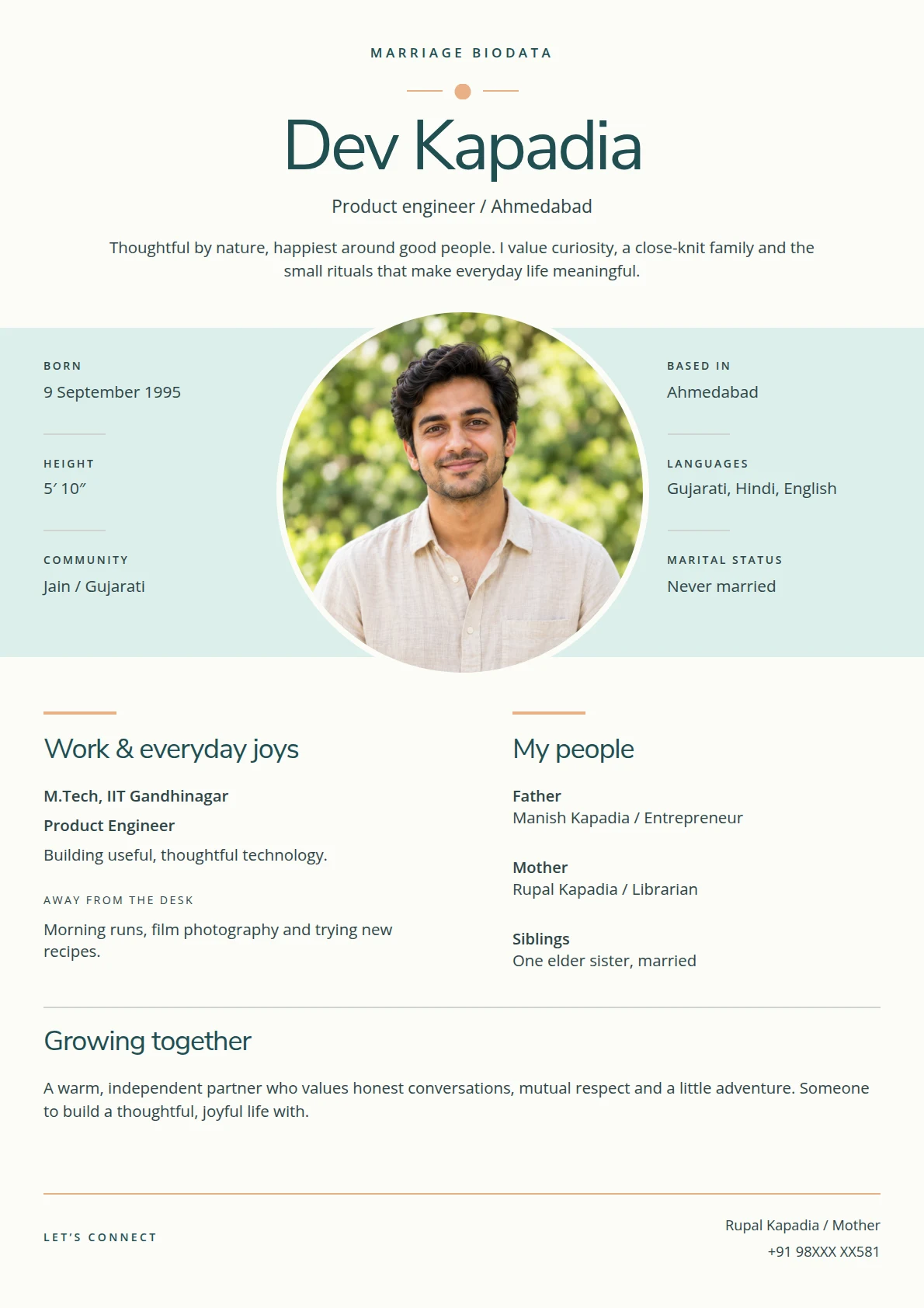
BALANCED
Lagoon & Apricot
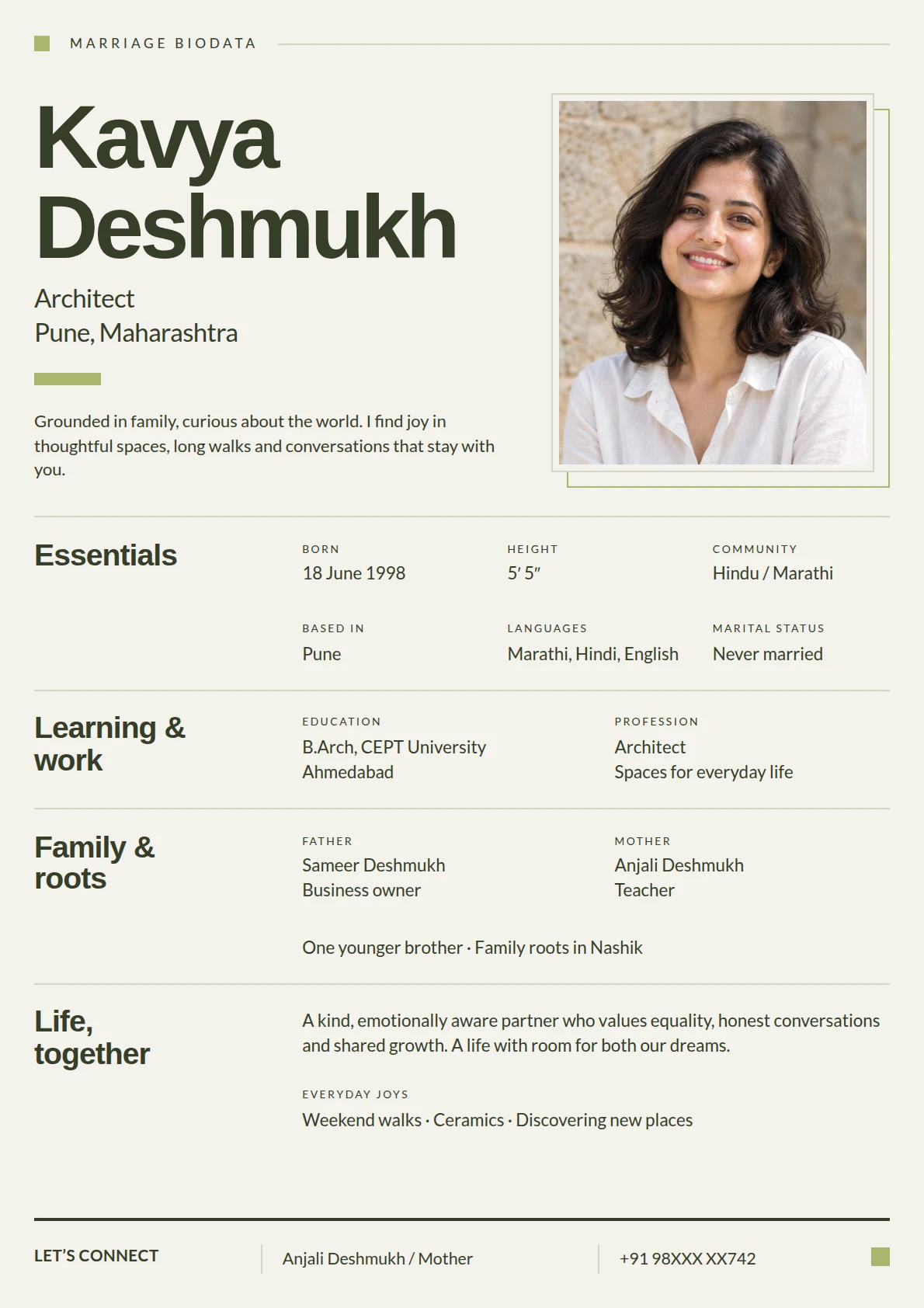
STRUCTURED
Olive & Chalk
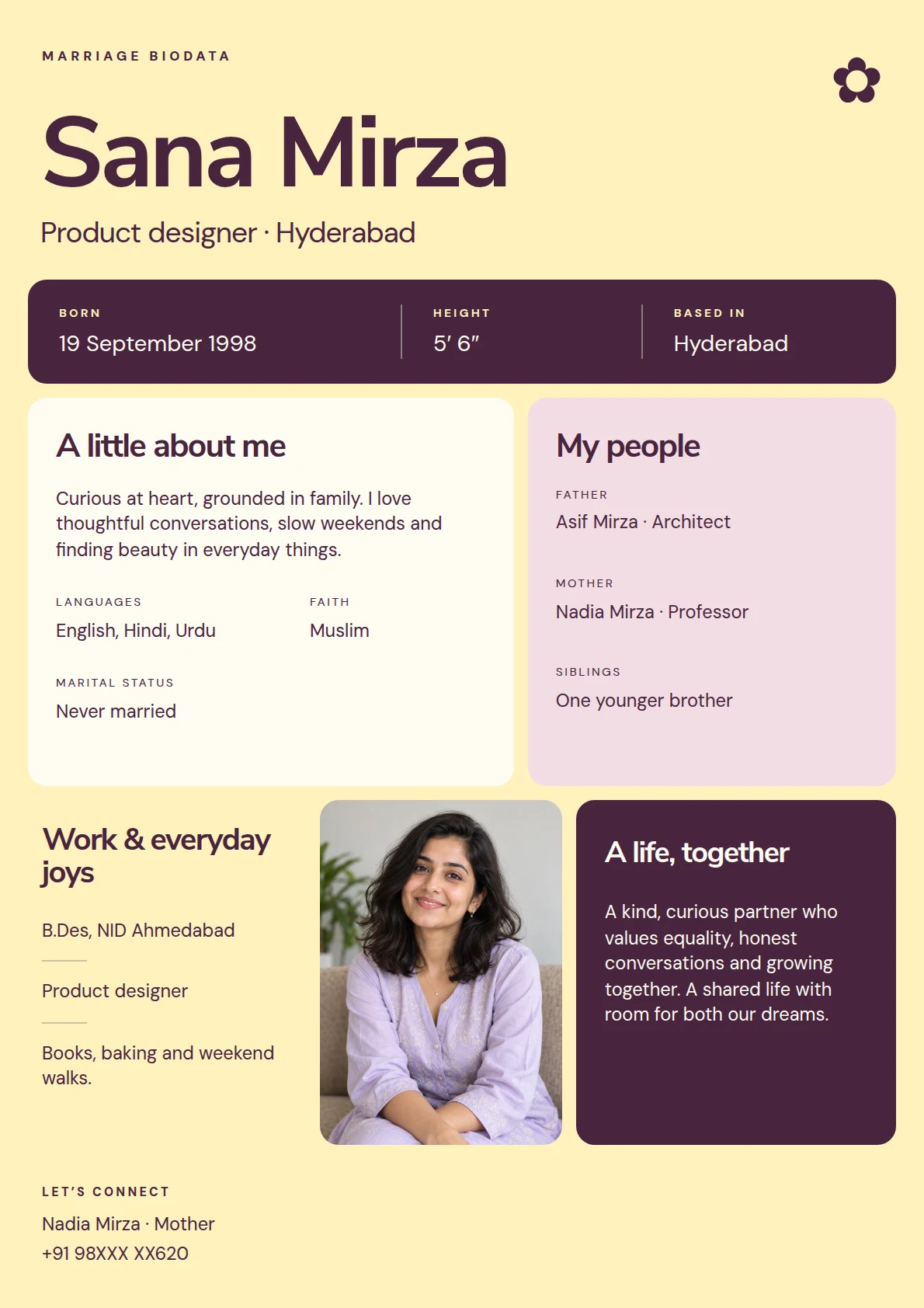
JOYFUL
Blackberry & Butter
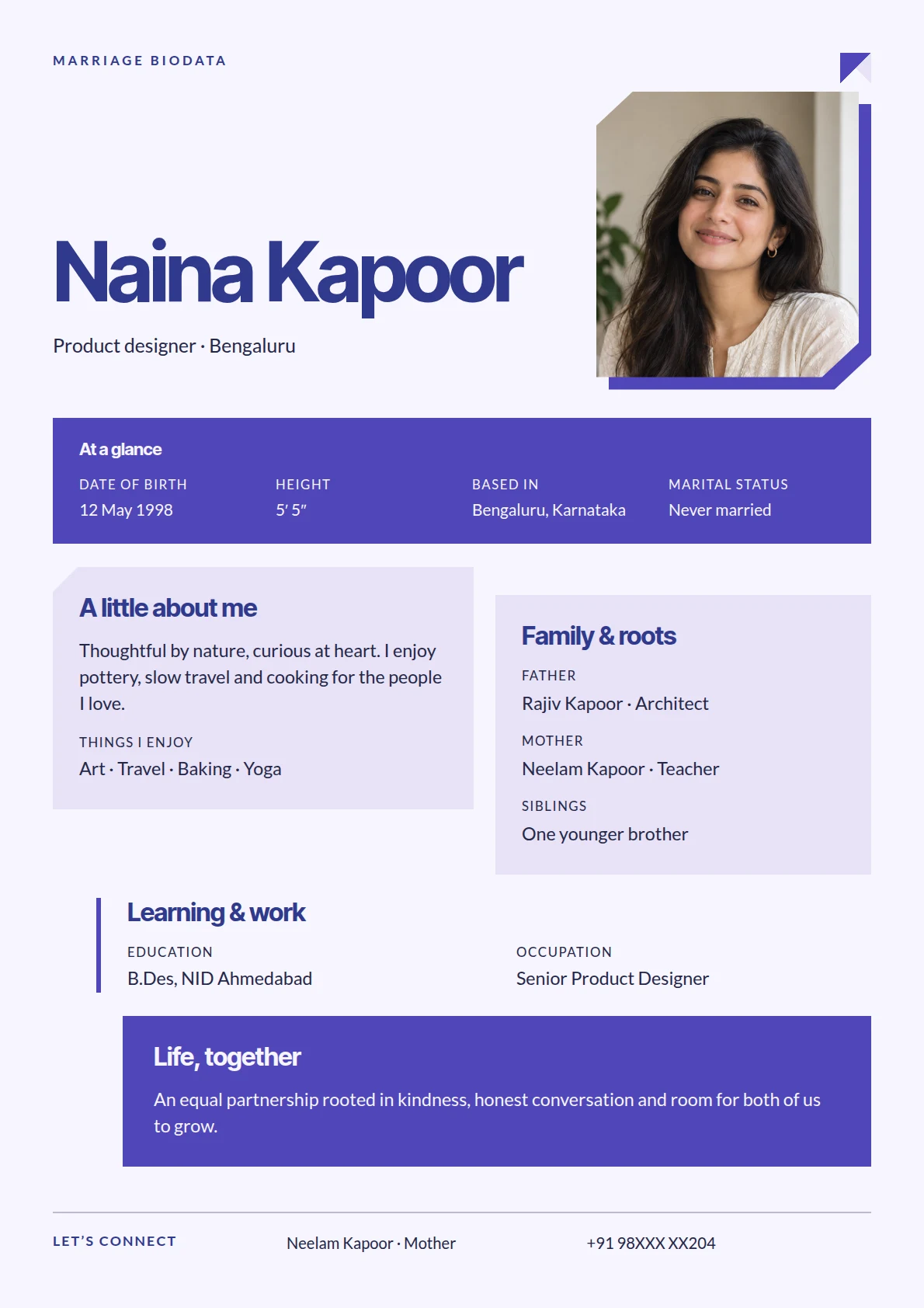
SCULPTED
Indigo & Origami
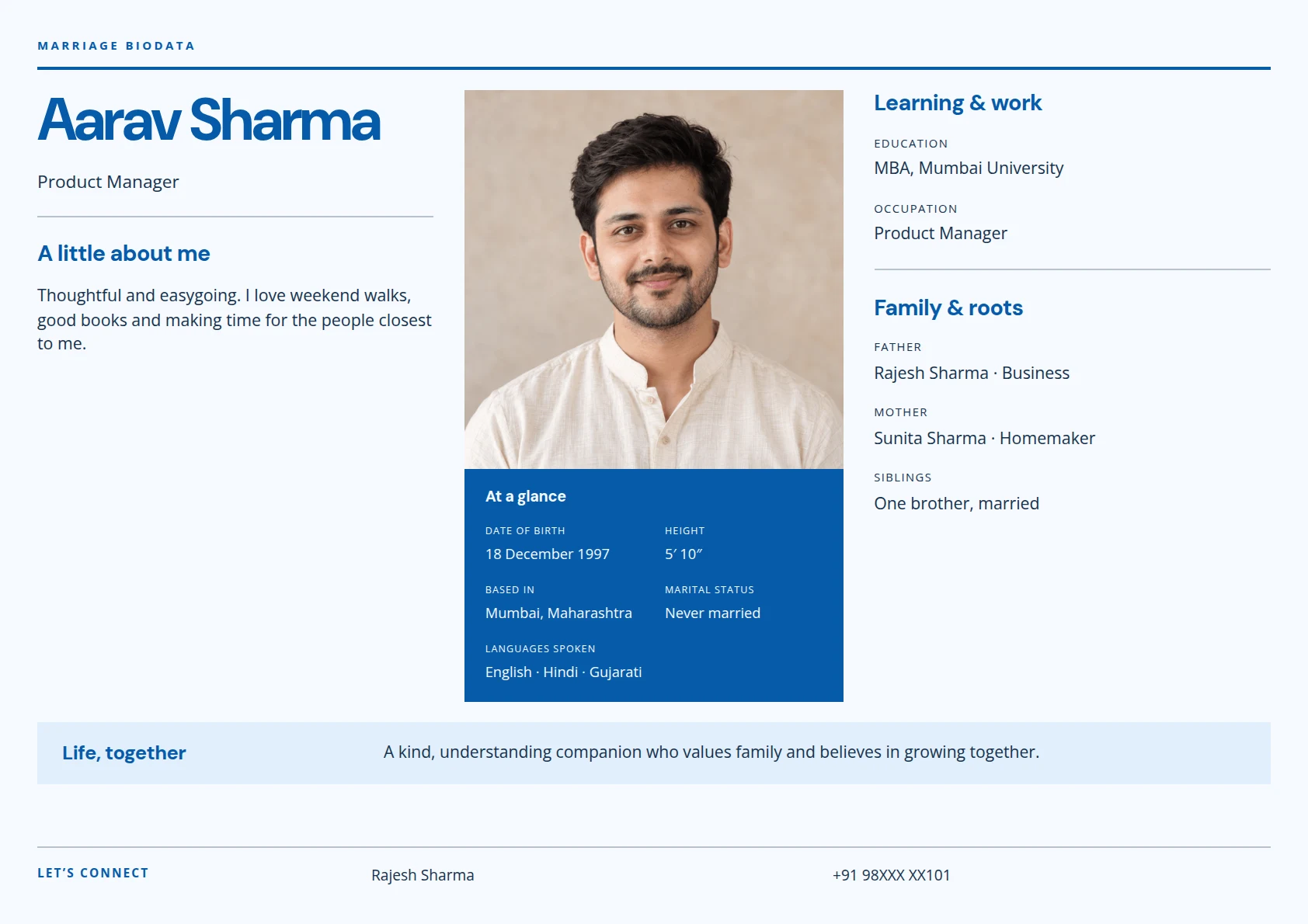
PRECISE
Azure & Grid
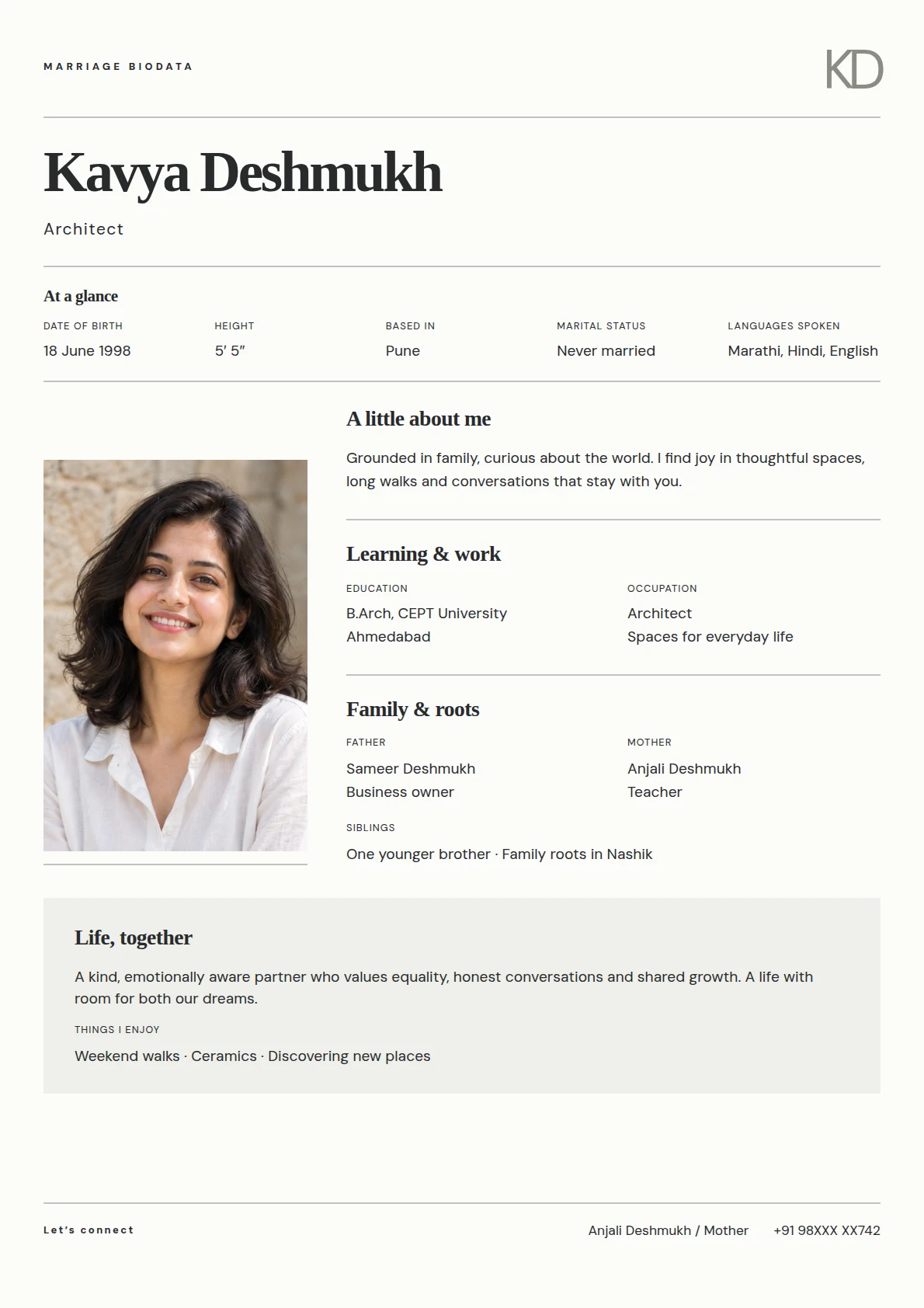
POISED
Pearl & Monogram
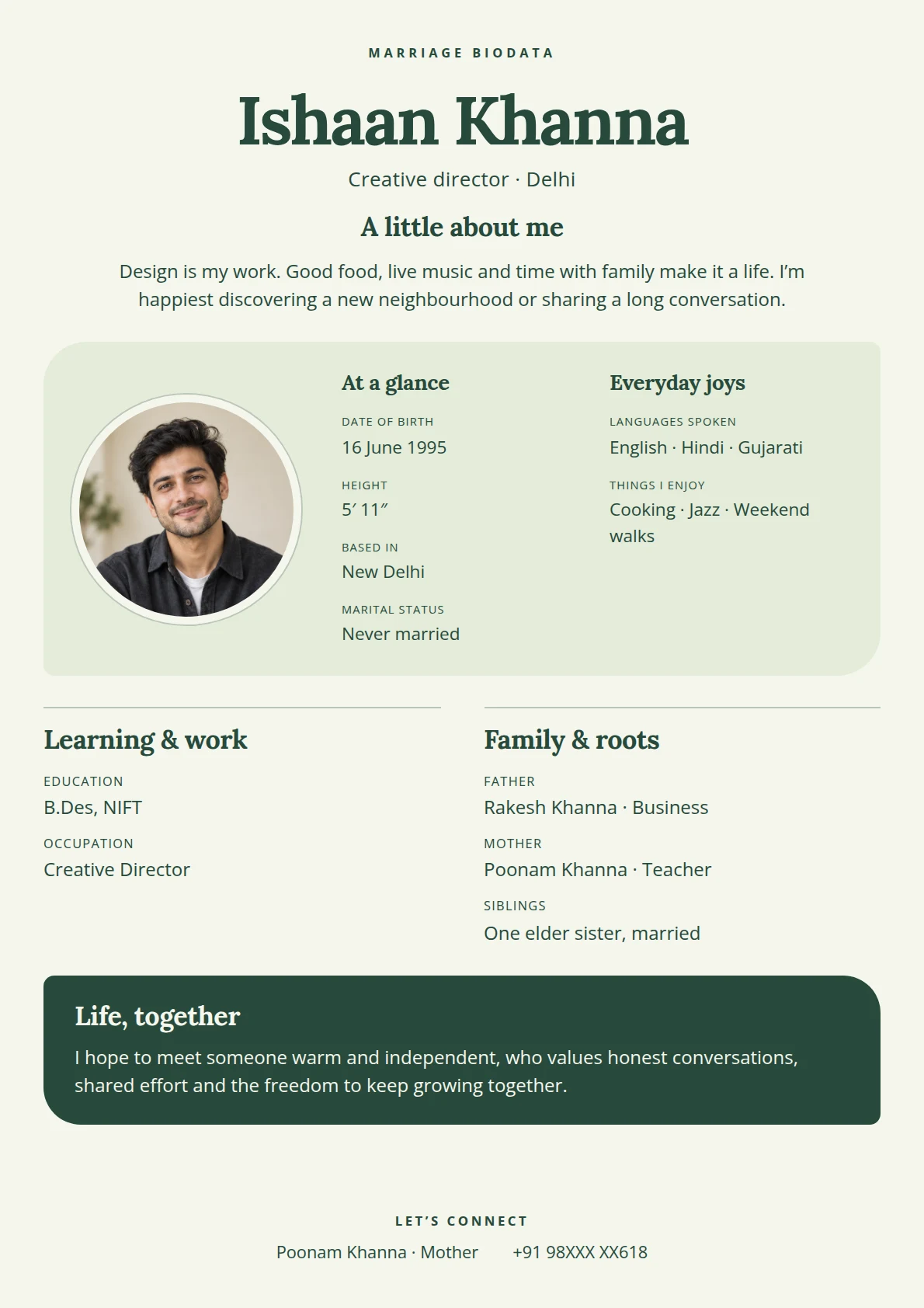
NATURAL
Moss & Meadow
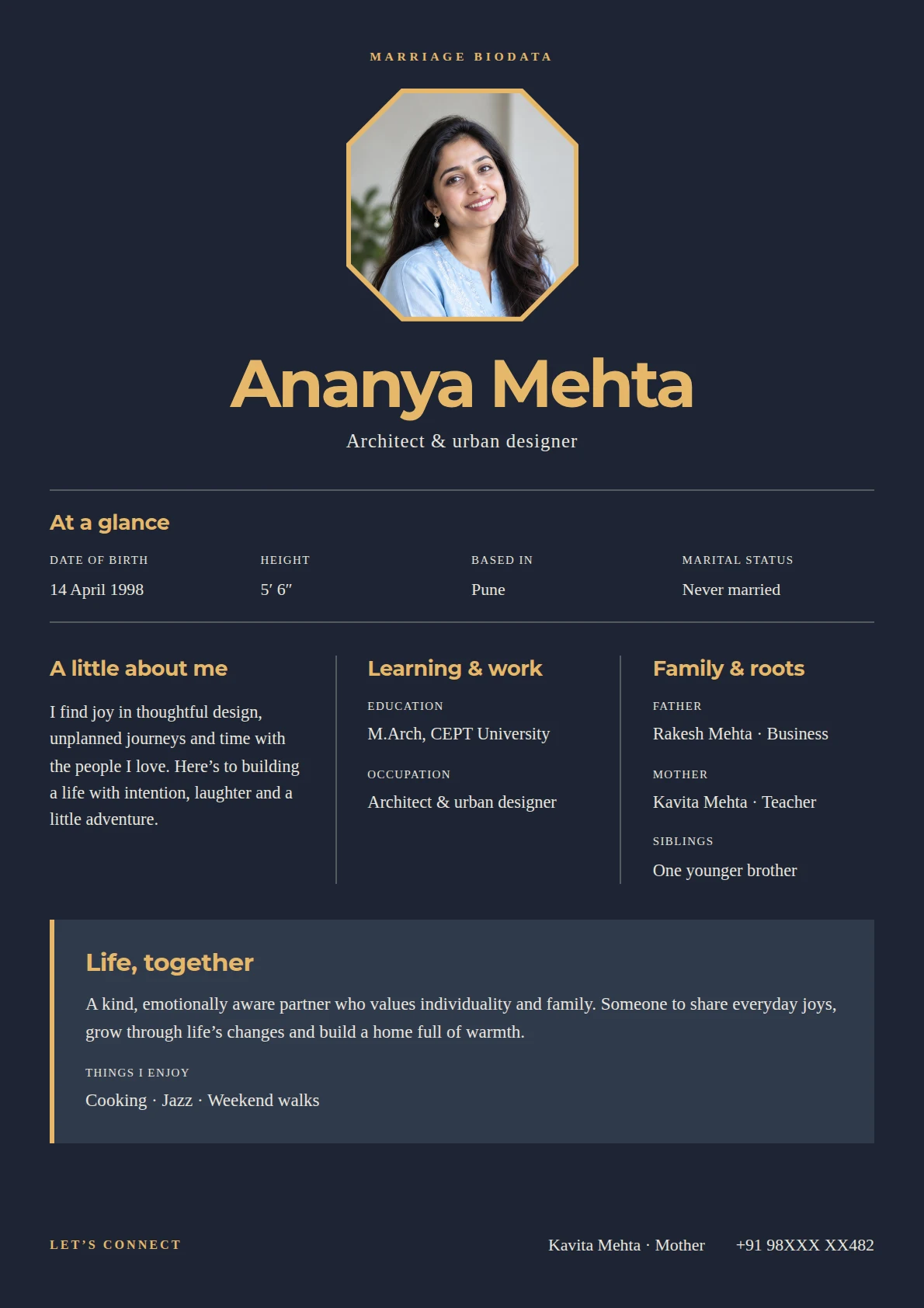
LUMINOUS
Amber & Dusk
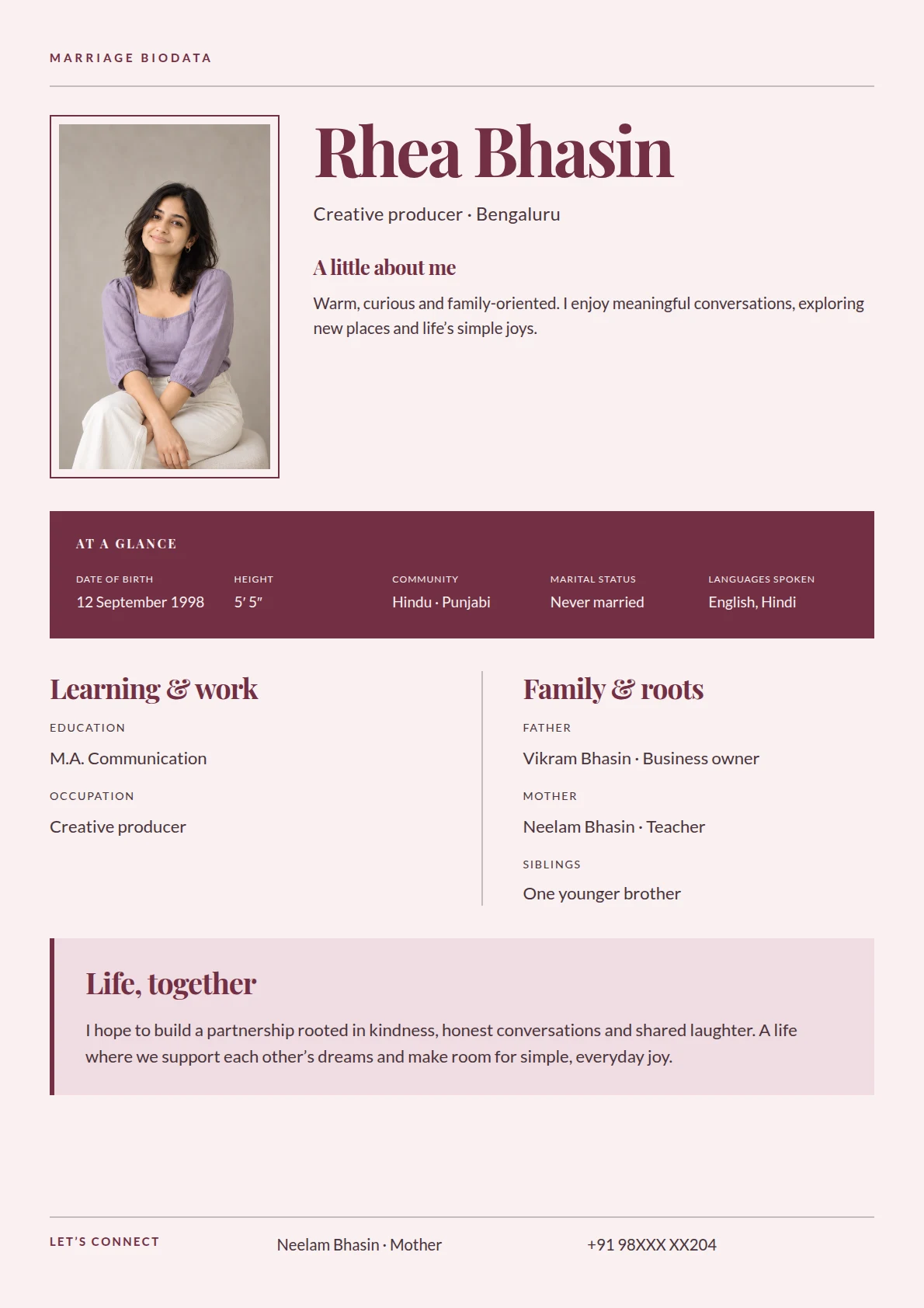
ELEGANT
Rosewood & Ribbon
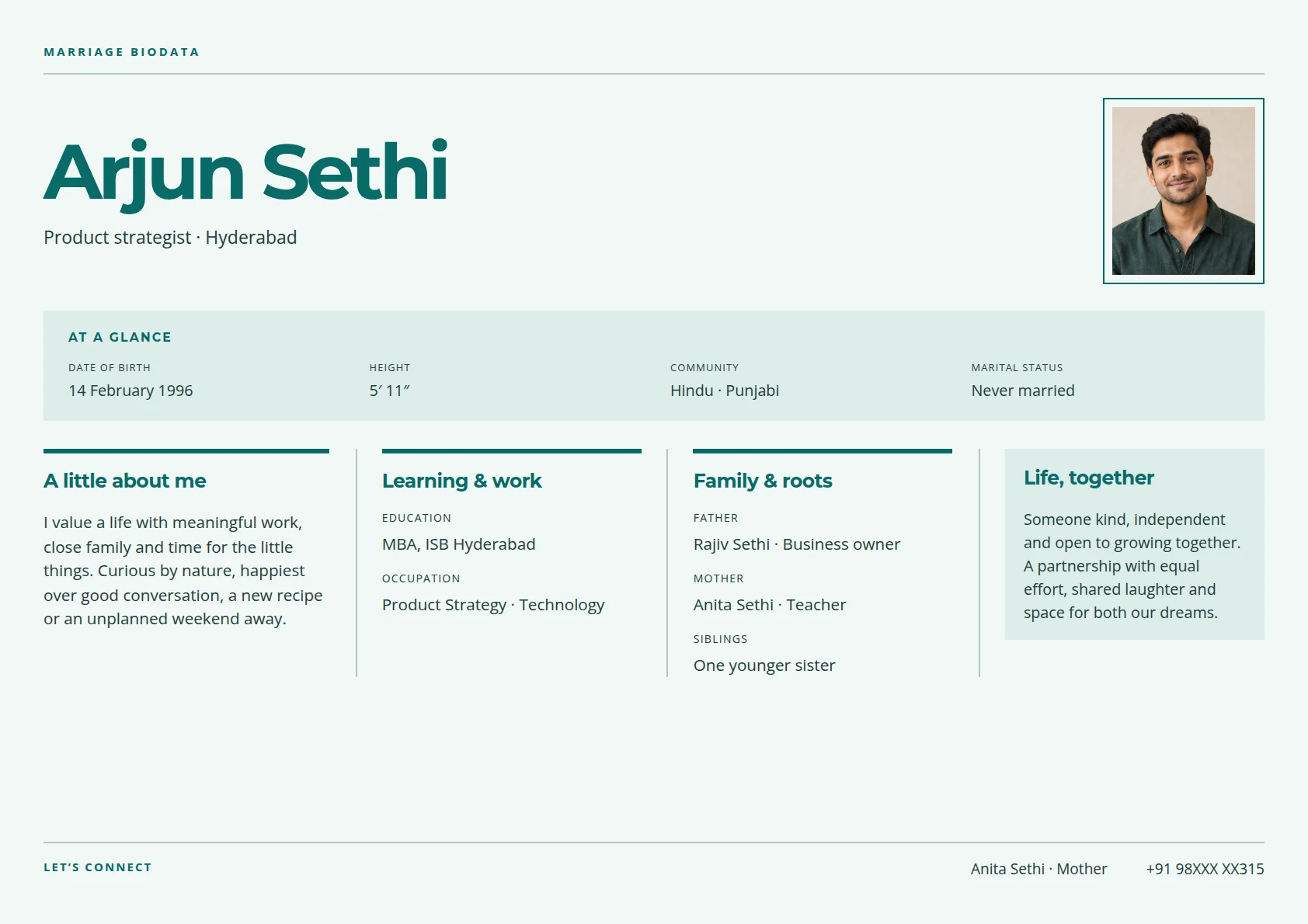
LANDSCAPE
Teal & Atlas
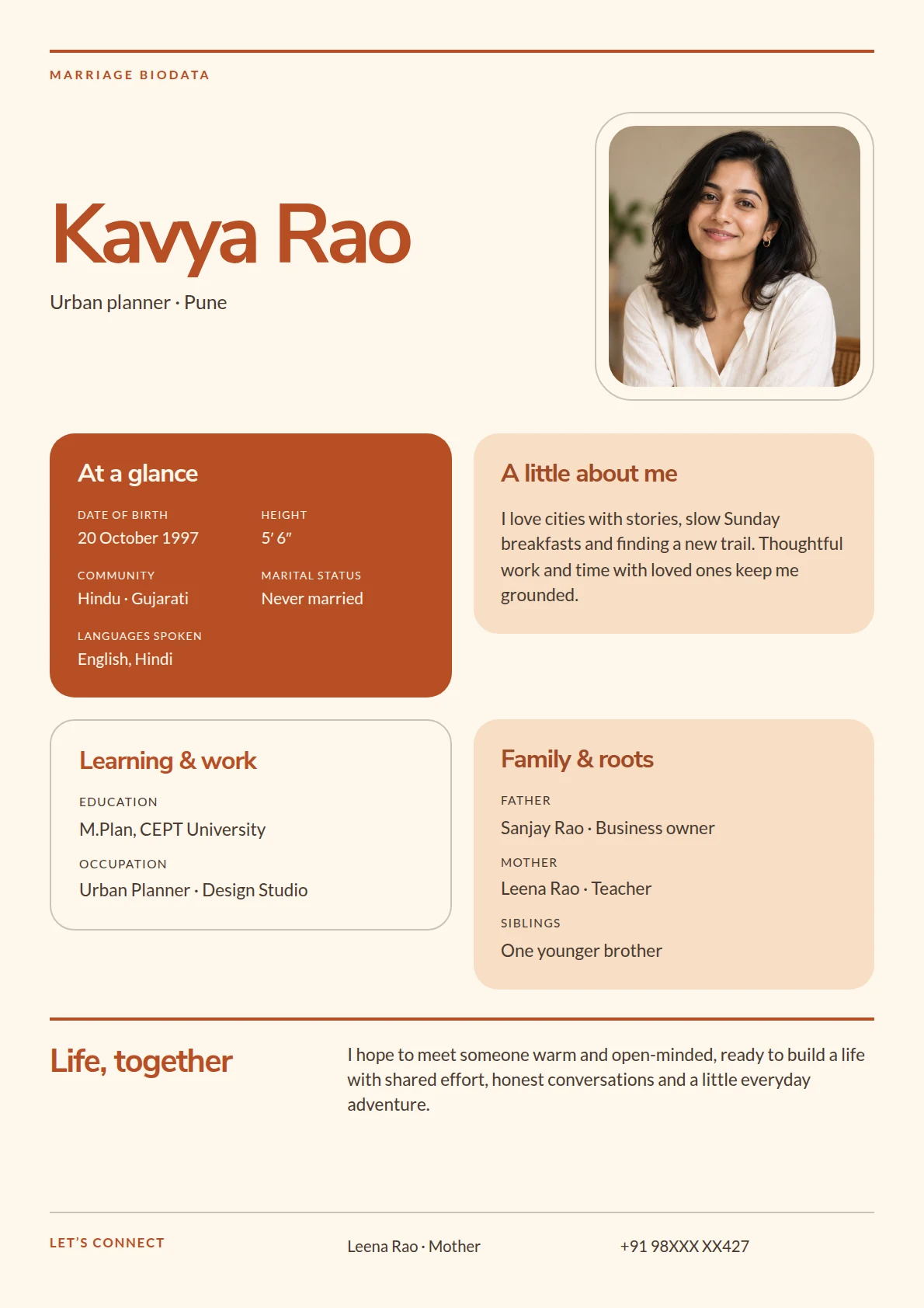
JOYFUL
Apricot & Mosaic
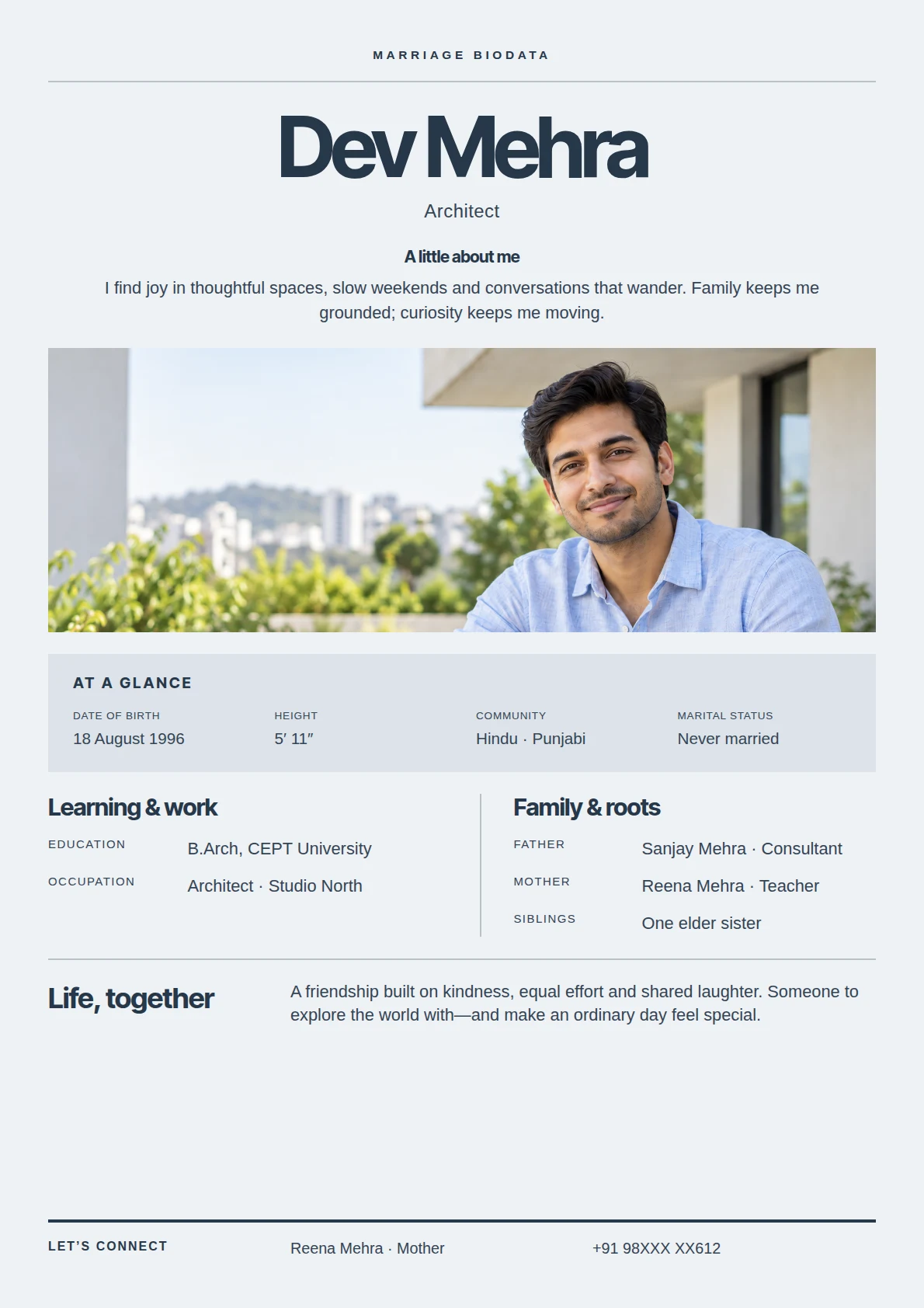
REFINED
Slate & Spotlight
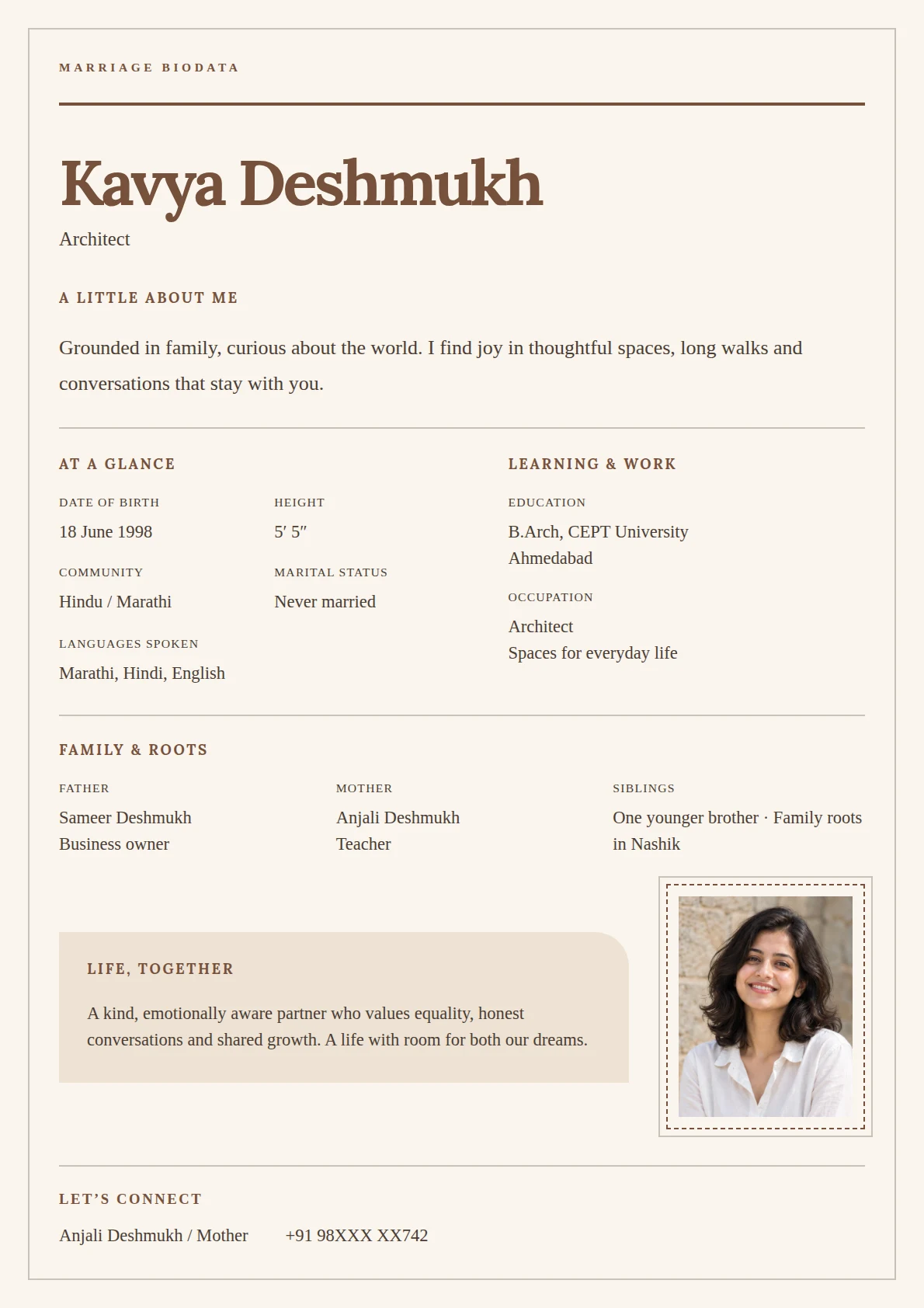
PERSONAL
Cocoa & Letter
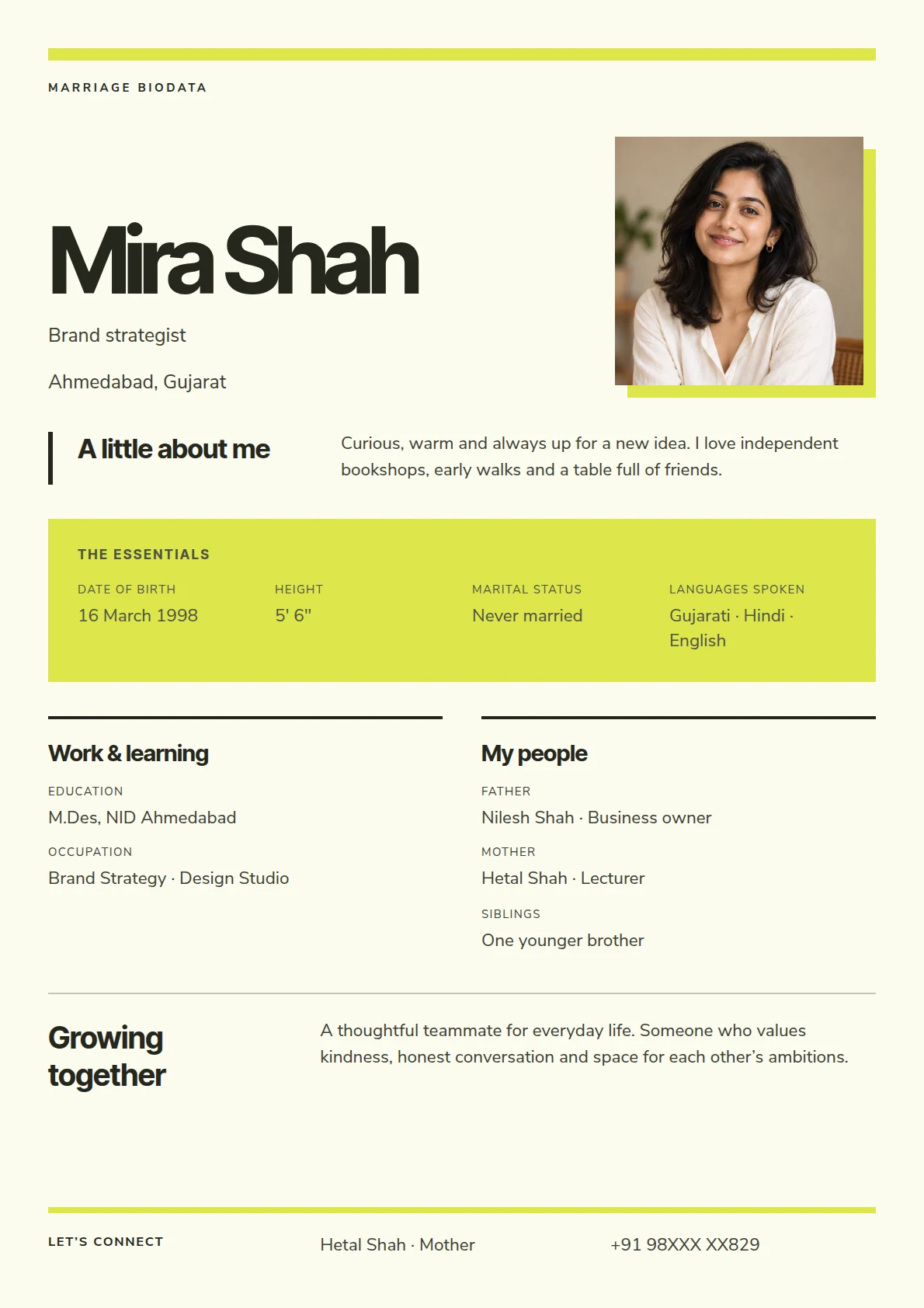
EXPRESSIVE
Citron & Carbon
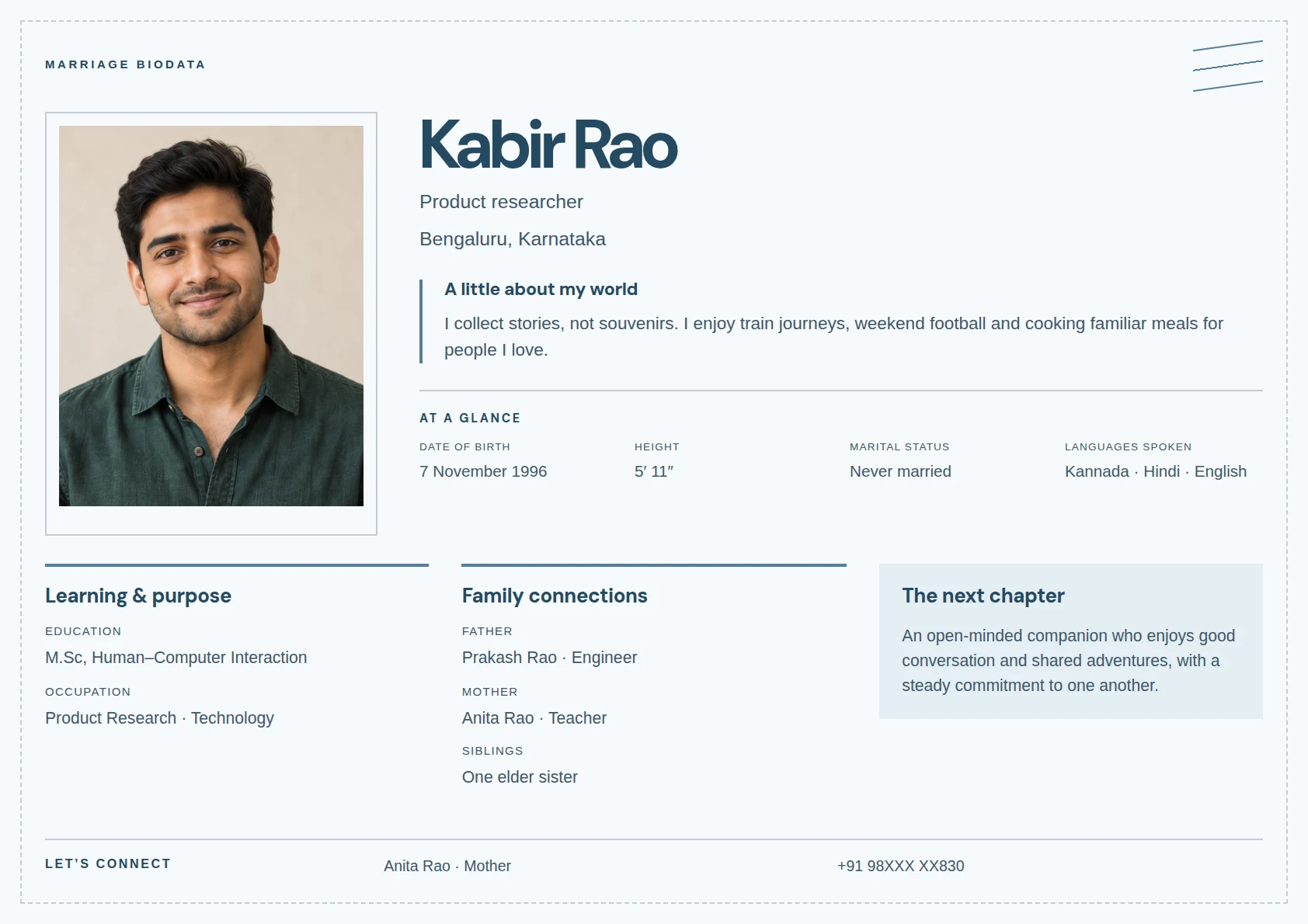
LANDSCAPE
Denim & Postcard
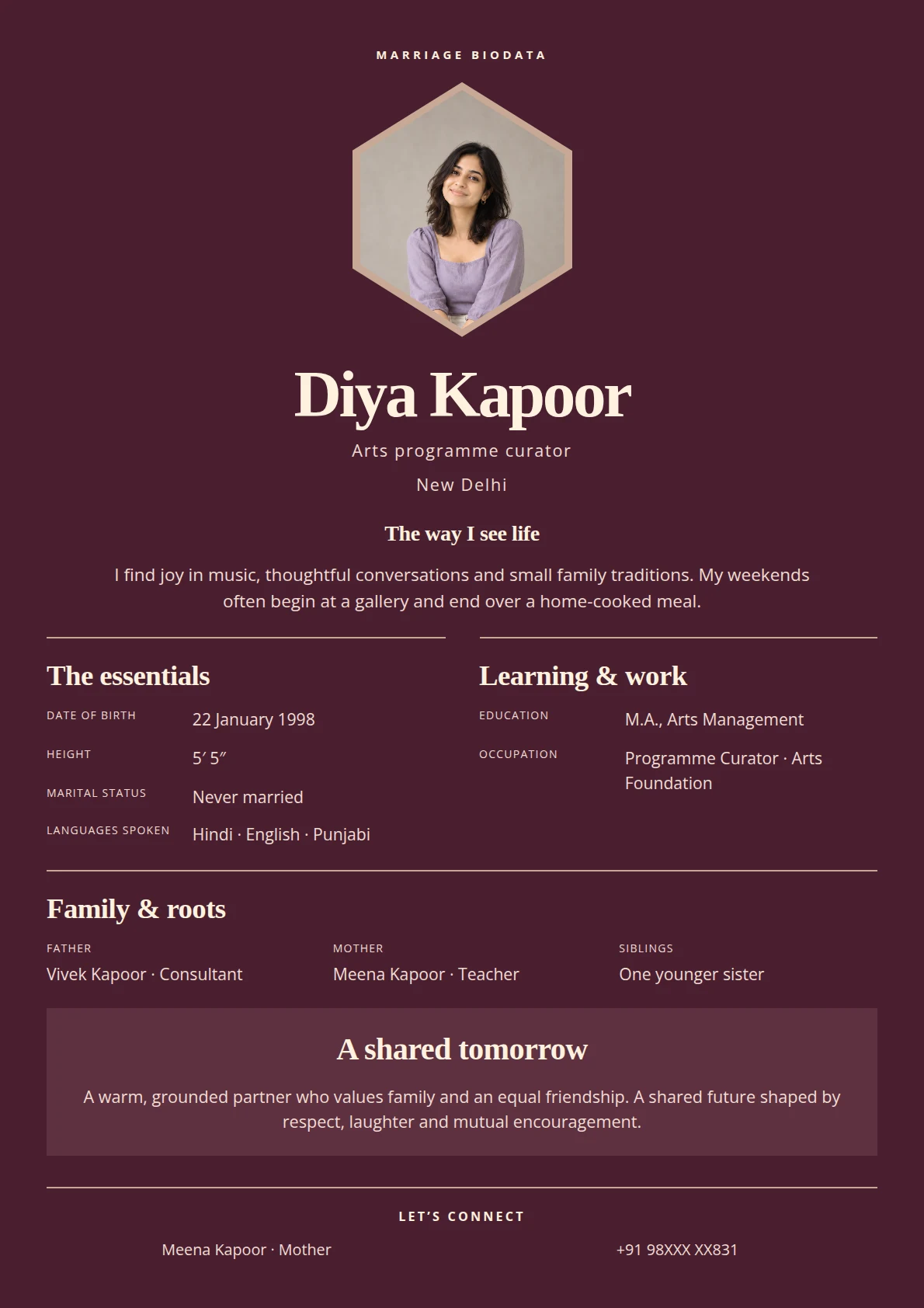
ELEGANT
Garnet & Cameo
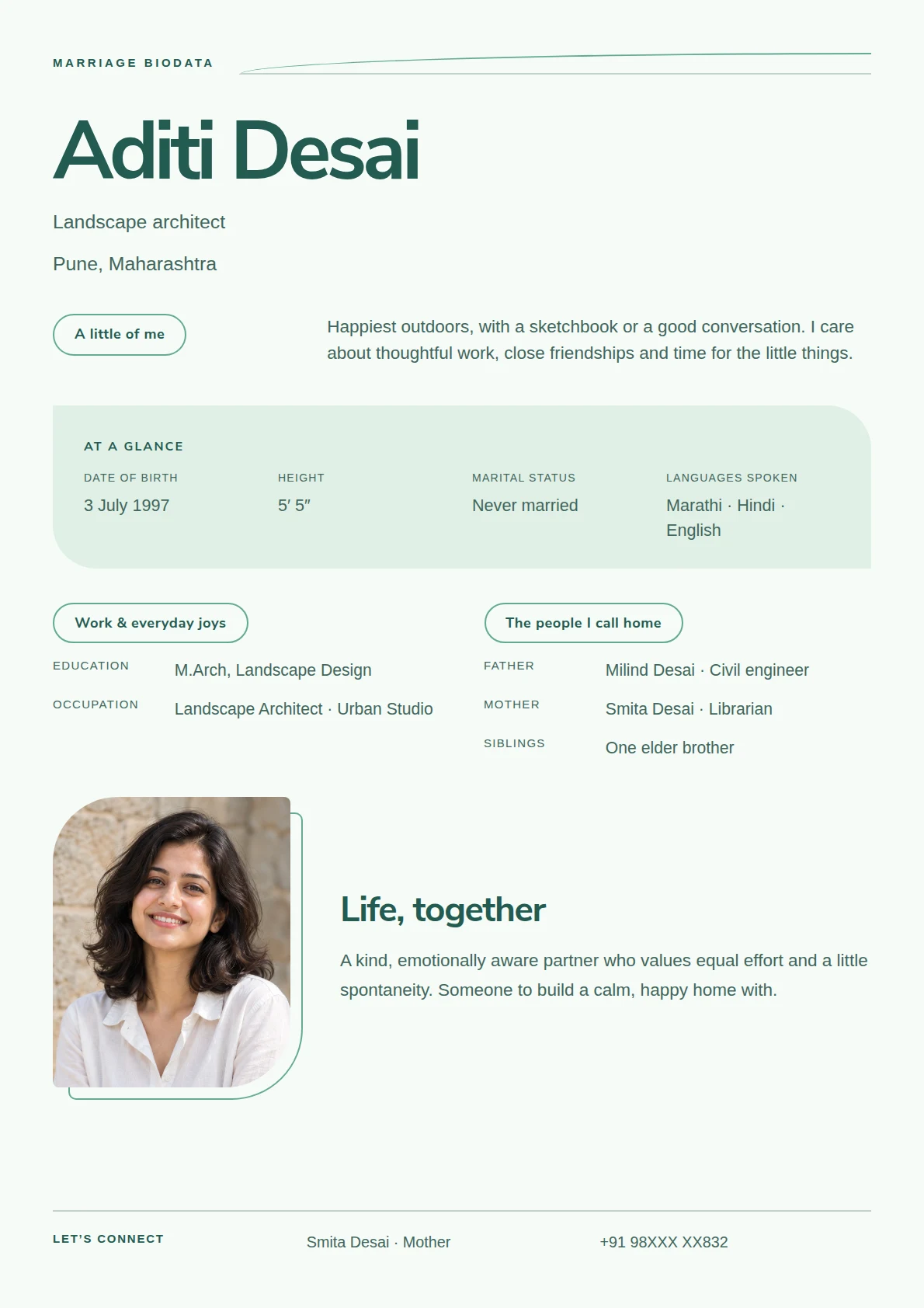
AIRY
Seafoam & Contour
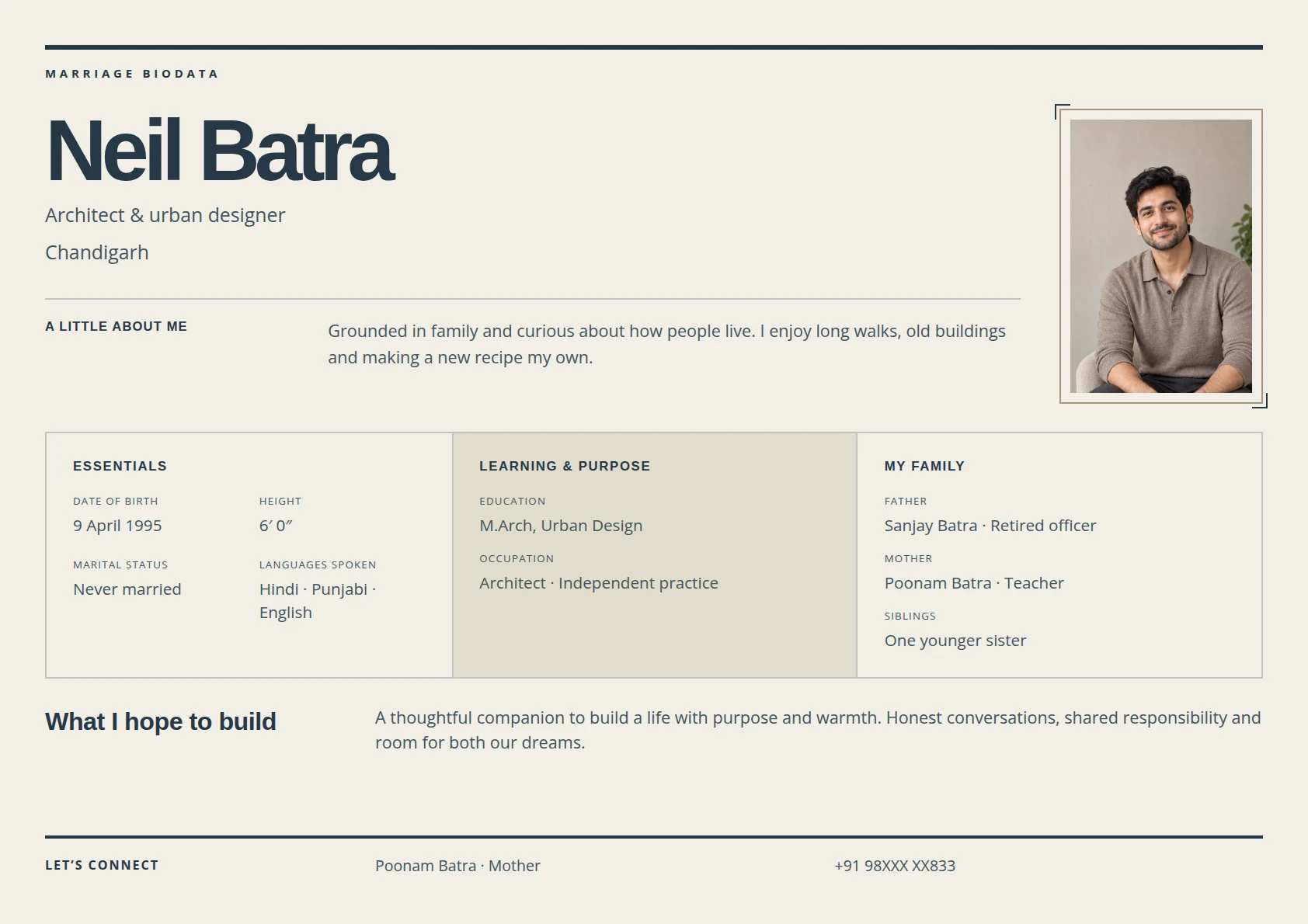
STRUCTURED
Sand & Blueprint
From your first detail to the final PDF
A clear path to your
finished biodata.
Start with a template. Make room for what matters to you. Leave with an introduction that is ready for the next conversation.
Choose a starting point
Find a design that suits your introduction. You can try another template later and keep the details you have entered.
Traditional to contemporaryPut yourself in the picture
Add your details and an optional photo. Include the sections that matter to you, then choose your colors and fonts.
Your words. Your preferences.Give it a final look
Review the live preview, enlarge it to check the details, and download a PDF ready to share or print.
Preview, download, share
A little clarity before you begin
Your biodata questions,
answered.
From your first template to the PDF you share, here’s what to expect.
Create BiodataWhat should I include in a marriage biodata?
Start with your personal details, education, career and family. Add interests, values, partner preferences and contact details where they feel relevant. Choose from ready-made sections or add your own, and hide anything you do not want to include.
Can I change the template after adding my details?
Yes. Click a design under Choose your template to apply it directly in the editor, keeping your details and photo. You can also select Choose Template to preview designs before applying one with Use this template.
Can I customize the colors, fonts and photo?
Yes. The Design tab lets you choose a theme, adjust the background and text colors, change fonts, and style the outer border and inner dividers. You can replace or remove the sample photo and customize individual text elements too.
Will changing the language translate what I write?
The maker supports 23 languages. Changing the language updates the controls and default labels; your editable text stays exactly as you entered it. Write your details, title, blessing and closing line in the language you prefer.
How do I get a copy to share or print?
Check your biodata in the enlarged preview, then select Download PDF. Wait for any image uploads to finish first. The PDF includes your chosen design and all pages of your biodata, ready to save, share or print.
Can I finish my biodata later?
Your current draft is saved in this browser when browser storage is available. Clearing this site's browser data removes that local draft. After downloading, you can reopen the saved details, images and template from Dashboard → Biodata history for 30 days, including on another device signed into the same account. Re-downloads follow your current plan and free download allowance.
How do I undo a design change?
Use Undo and Redo in the Design tab during your editing session. Restore template design returns the styling to the template defaults while keeping your details, photo and logo. These design controls do not undo text you have typed in the Details tab.